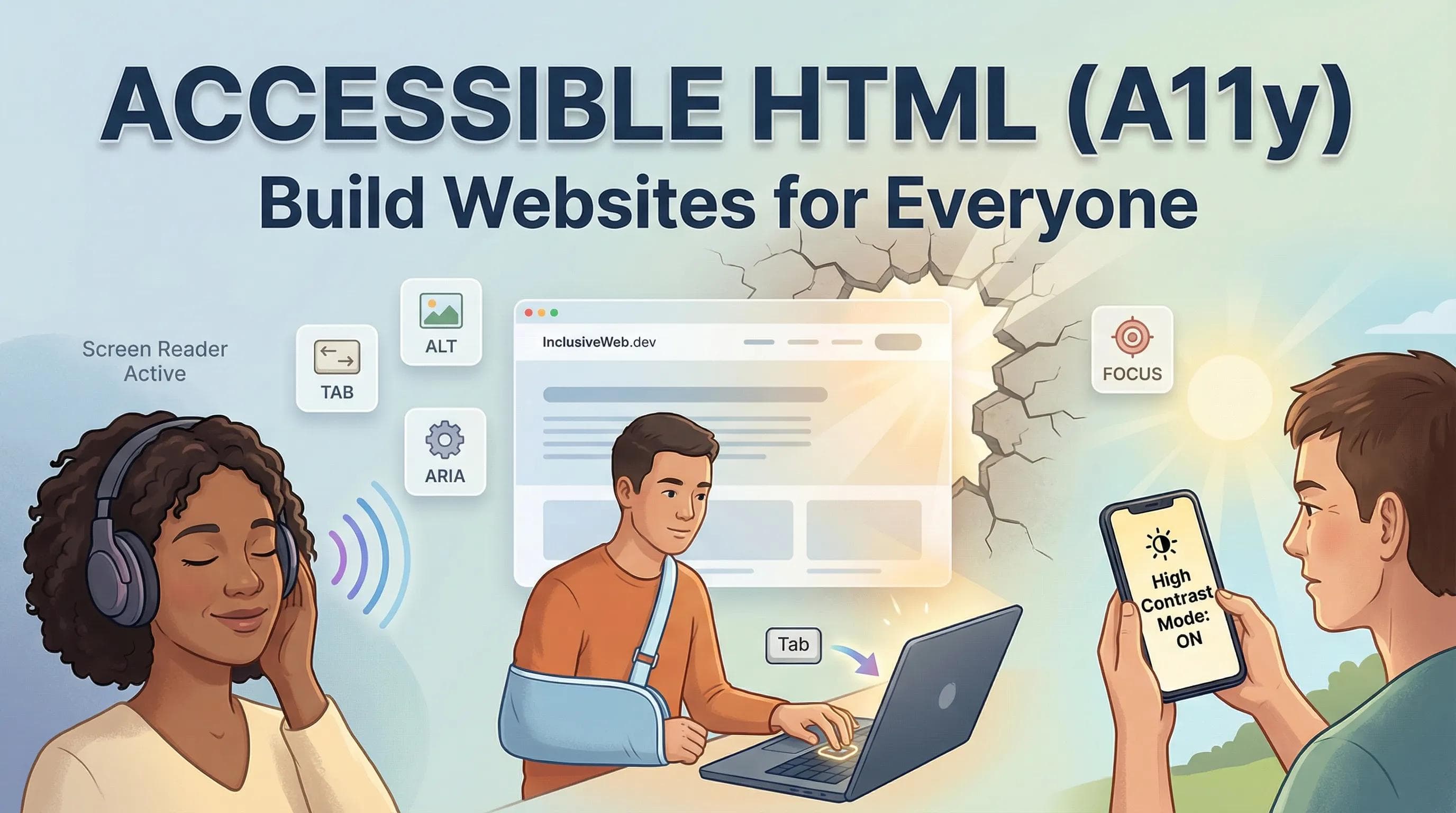
The "Invisible Wall"
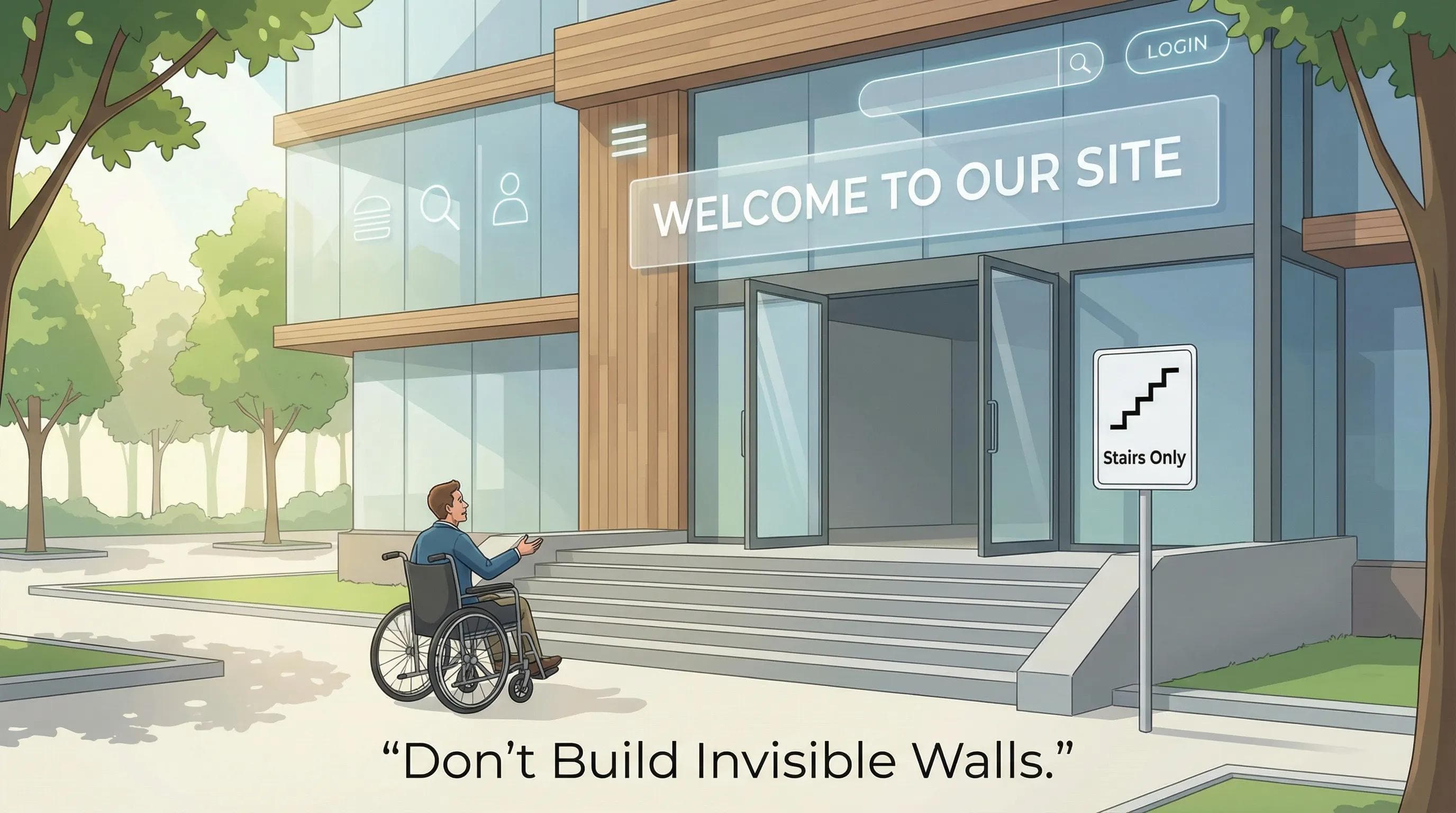
Imagine you build a beautiful shop. It has glass doors, fancy lights, and great products. But... you built it at the top of a staircase with no ramp.
Result: A person in a wheelchair can see your shop, but they cannot enter. You just lost a customer.
The same happens on the web. If your website isn't "Accessible," you are blocking blind users, people with motor disabilities, and the elderly from using your site.
This concept is called A11y (There are 11 letters between 'A' and 'y' in Accessibility). Today, we will learn how to remove these walls.
1. Who Benefits? (It's Not Just for the Blind)
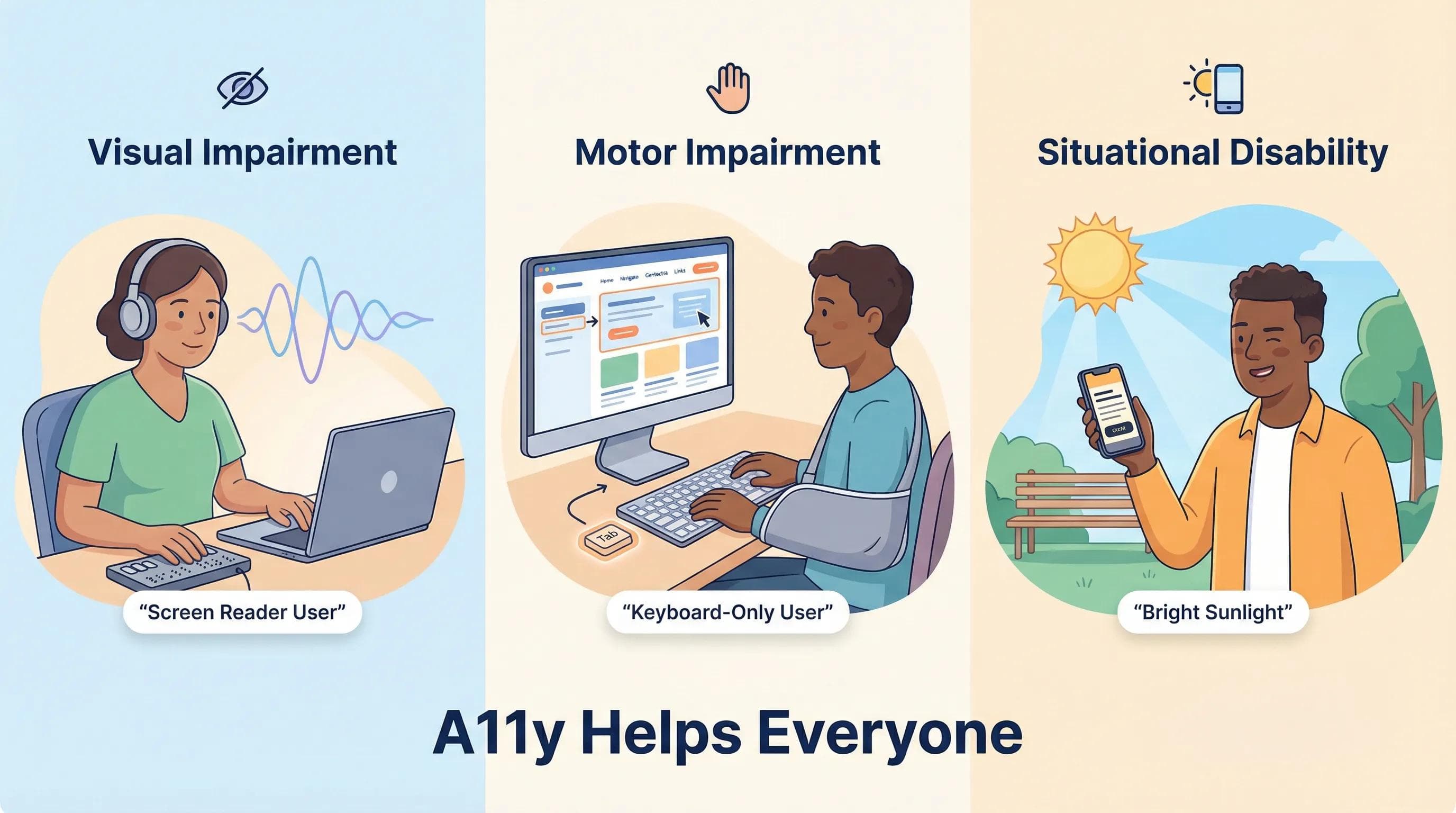
You might think: "My target audience isn't blind, so why bother?" Accessibility helps everyone.
- Visual Impairments: Blind users who use Screen Readers (software that speaks the website content).
- Motor Impairments: People who cannot use a mouse (Parkinson's, broken arm) and rely on the Keyboard.
- Situational: You, when you are in bright sunlight and can't read low-contrast text.
2. The Golden Rule: Semantic HTML
We learned about Semantic Tags (
<button>, <nav>, <header>) in Blog 16. Here is why they matter: Semantics = Accessibility.- If you use a real
<button>, the browser automatically lets the user click it with the Enter key. - If you use a
<div class="btn">, the browser treats it like a plain box. A keyboard user cannot click it.
"Good HTML is Accessible HTML." If you write standard code, 80% of accessibility is done automatically.
3. The "Alt" Text Requirement (Revisited)
We know images need
alt text. But are you writing good alt text?- Bad:
alt="image"oralt="photo"(Useless info). - Bad:
alt=""(If the image is purely decorative, this is actually okay, but be careful). - Good:
alt="Sunny coding on a laptop with a coffee mug"(Descriptive).
AI Angle: AI tools often generate generic alt text. You need to add the context.
4. The "Tab Test" (Keyboard Navigation)
This is the easiest way to test your site.
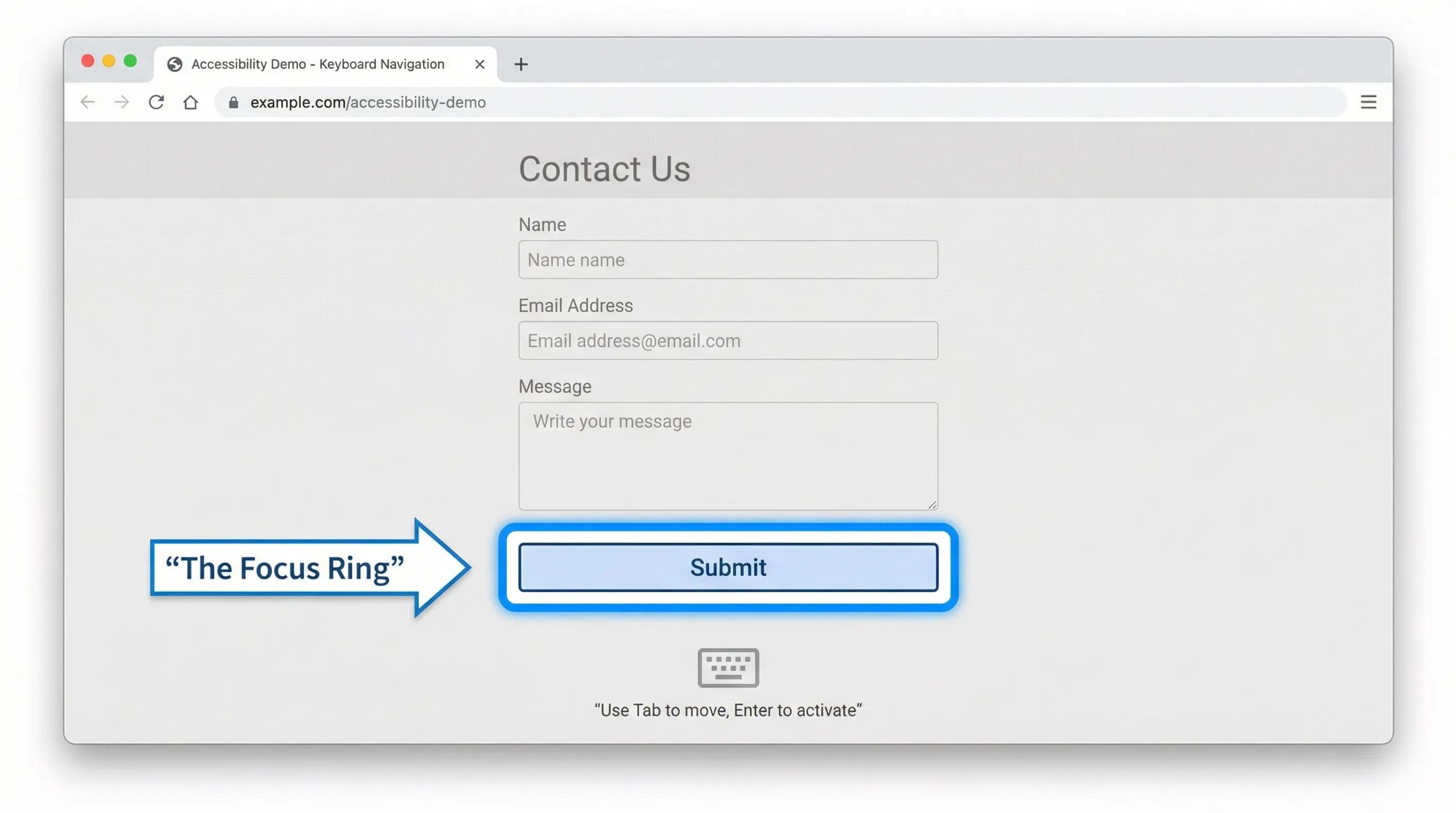
Unplug your mouse. Now, try to fill out your "Contact Form" using only the Tab key and Enter key.
- Can you jump from "Name" to "Email"?
- Can you press "Enter" to submit the form?
- The Focus Ring: Do you see a Blue Outline around the box you are typing in?
CRITICAL WARNING:
Many designers hate the "Blue Outline" (Focus Ring) and remove it using CSS (outline: none). NEVER DO THIS. If you remove the outline, a keyboard user has no idea which button they are on. It is like driving a car blindfolded.
Advanced: Introduction to ARIA (The Helper)
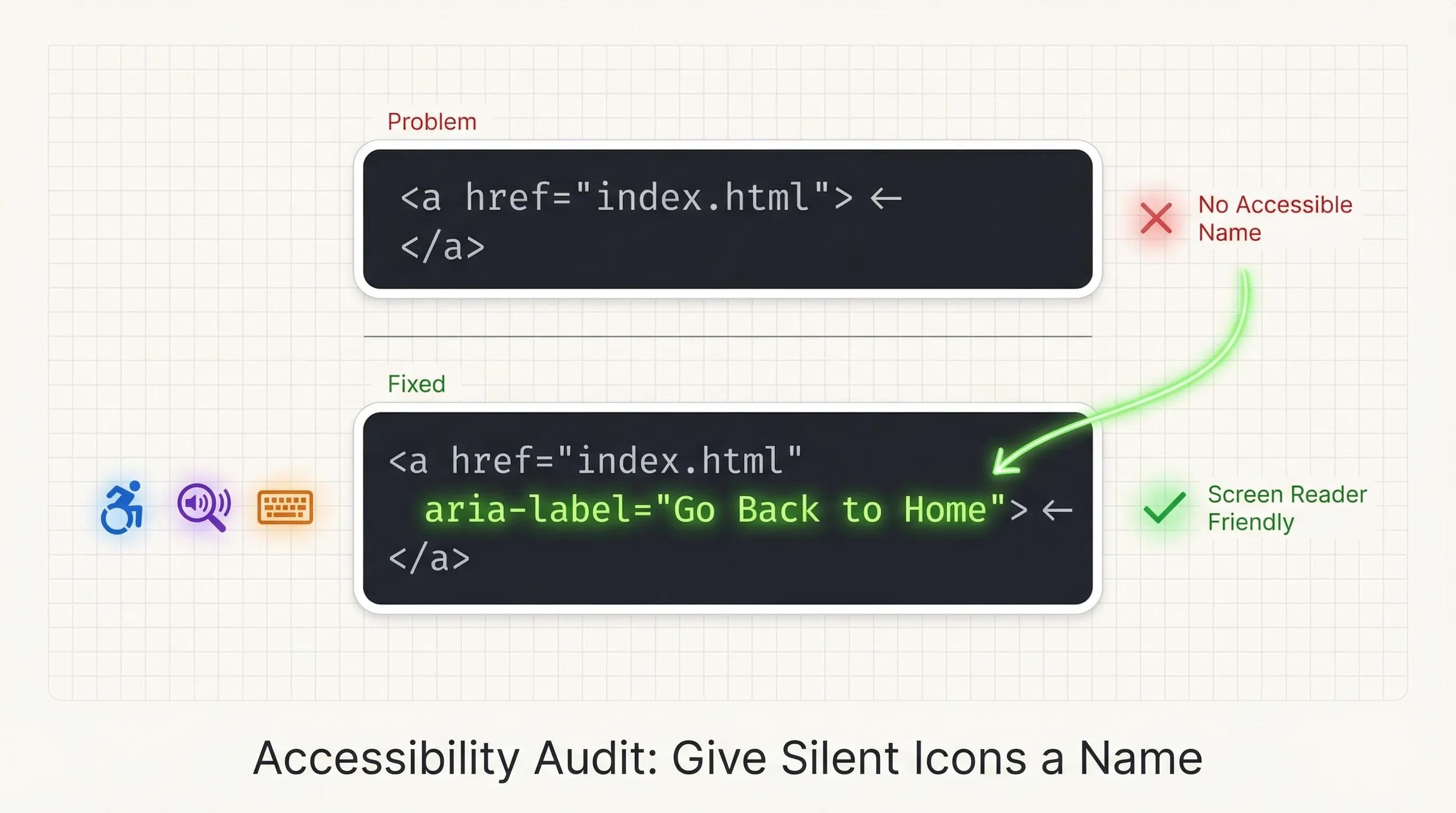
Sometimes, HTML isn't enough. For example, you have a button that is just a "Magnifying Glass" icon 🔍. It has no text. A Screen Reader will just say: "Button." The user asks: "Button for what?"
We use ARIA (Accessible Rich Internet Applications) to provide hints.
aria-label
This gives the element an "Invisible Name" for blind users.
html
<button aria-label="Search Website"> 🔍 </button>role
If you are forced to use a
<div> as a button (legacy code), you can fix it slightly using role.html
<div role="button">Click Me</div>The AI Angle: AI is "Ableist"
AI models are trained on the visual web. They prioritize "Looking Good" over "Working Well." AI will frequently give you code that lacks
alt tags, labels, or keyboard support.Your Job: Be the empathetic human. AI builds for eyes; You build for people.
Practical Task: The Accessibility Audit
Let's audit our
contact.html.Step 1: Open
contact.html. Step 2: Look at your social links or icons (if any). Do they have text?
Step 3: Add
aria-label to links that are just symbols (like "Go Back").🛑 STOP! DO NOT JUST READ! Actually perform the "Tab Test" on your browser right now. Press Tab repeatedly. If the focus jumps randomly, your code is broken. Fix the order!
html
<a href="index.html"> ← </a>

<a href="index.html" aria-label="Go Back to Home"> ← </a>
Step 4: The Tab Test. Open your browser. Press
Tab repeatedly.- Does it move from Name -> Message -> Submit?
- If yes, your form is accessible!
Summary Table: A11y Checklist
| Feature | Requirement | Why? |
|---|---|---|
| Images | alt="description" | For blind users |
| Buttons | Use <button> / not <div> | For keyboard users |
| Forms | Use <label> with for="" | Clickable area & screen readers |
| Icons | Use aria-label | To name silent buttons |
| Focus | Never outline: none | To see where you are typing |
Conclusion
You have now learned the "Moral Duty" of a developer. Your website is semantic, connected, interactive, and accessible.
You are writing code that works. But... does your code look "Clean"? If I opened your code file right now, would it look like a messy bedroom with clothes everywhere, or a neat library? Professional developers follow strict rules to keep their code clean, readable, and standard.
In the next blog, "Clean Code & Best Practices," we will cover the 5 Golden Rules that separate a "Hobbyist" from a "Pro Developer," including Indentation, Comments, and Naming Conventions.
See you in the next post!
You can Read next part from here - READ NOW!
HTML Series: Your First Step in Modern Web Development (2026)
Step 19 of 22