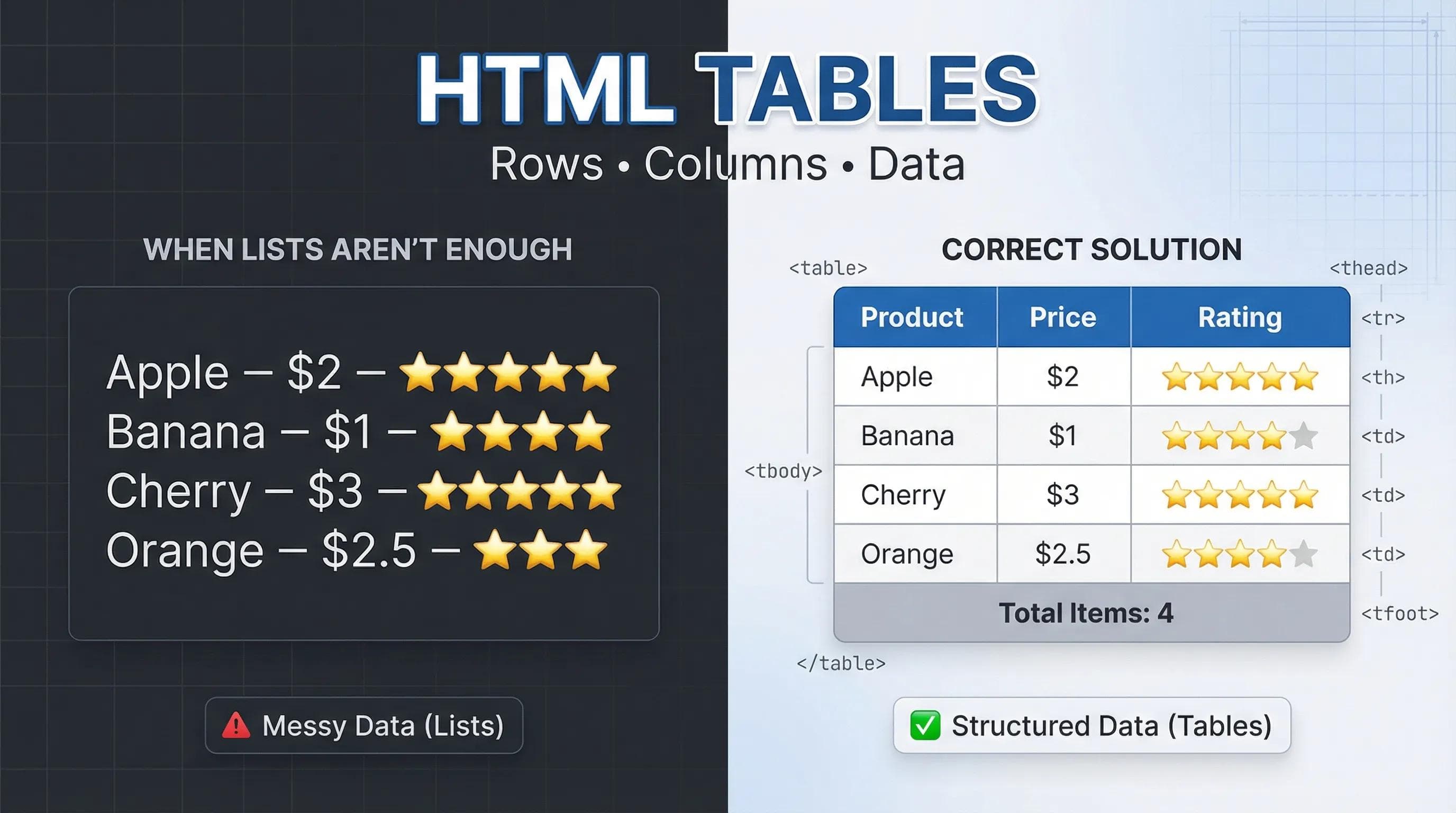
When Lists Aren't Enough
In the previous blog, we mastered Lists. They are perfect for things like a grocery list or a recipe.

- Apple
- Banana
- Cherry
But what if we need to show more details, like if we want to show the Price and the Rating for each fruit?
If we use a list, it looks like a mess:
- Apple - $2 - 5 Stars
- Banana - $1 - 4 Stars
This is hard to read. We don't need a list here; we need a Grid. We need an HTML Table.
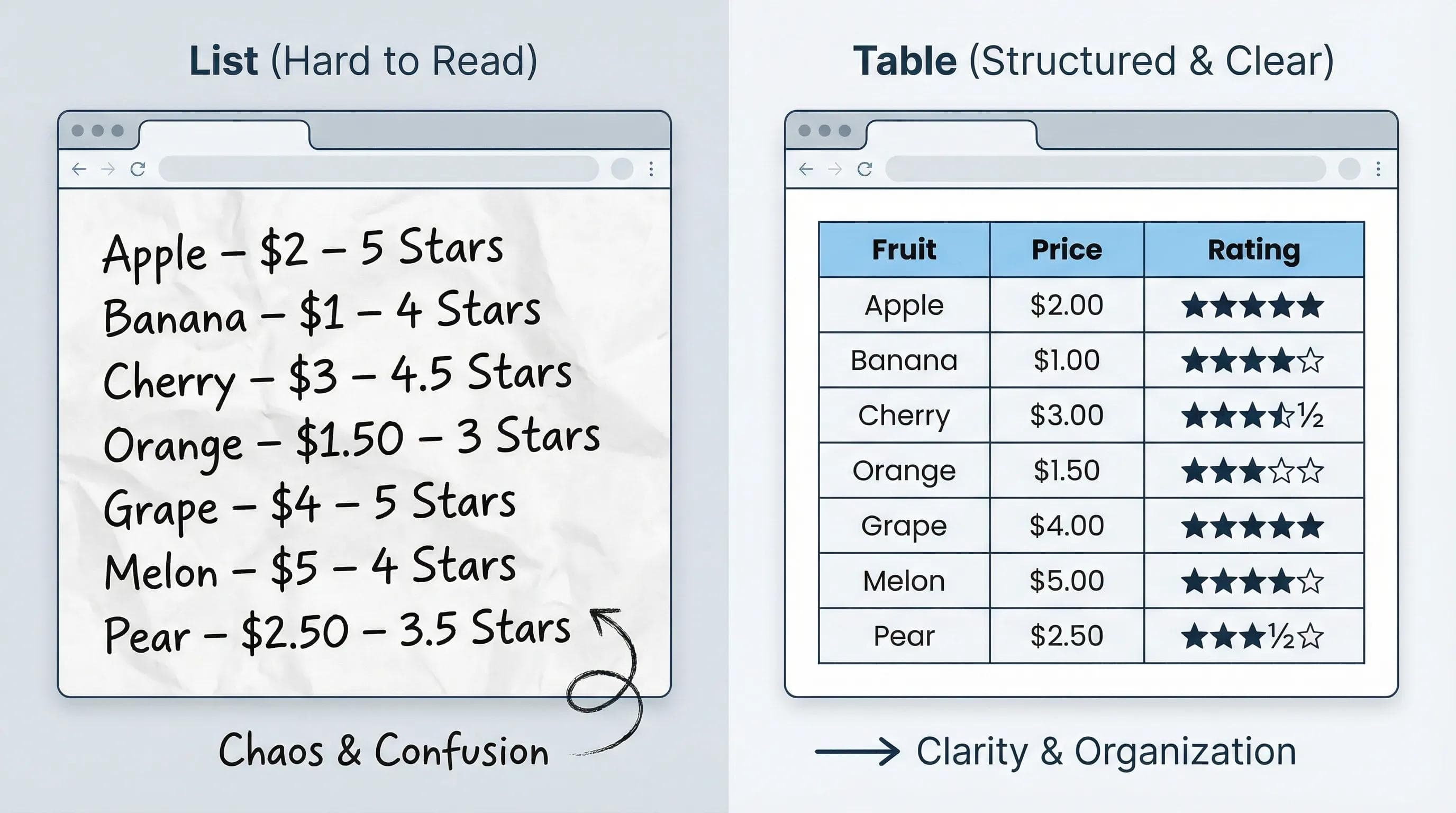
Warning ⚠️
Before we write a single line of code, you need to know a piece of history to avoid a major mistake. In the 1990s and early 2000s, developers used Tables to design the Layout of entire websites (e.g., putting the Sidebar in one column and the Main Content in another).
NEVER Use Tables for Layout!
Today, this is strictly forbidden. Tables are only for data (Marksheets, Price Lists, Schedules). For moving things around the screen (Layout), we use CSS (which we will learn later).
Thinking in Rows
In Excel, you see a grid and you can type anywhere. In HTML, you have to build the table Row by Row, like laying bricks for a wall.
The Hierarchy:
<table>: The Container (The whole wall).<tr>(Table Row): A horizontal line of bricks.<th>(Table Header): A bold brick for titles.<td>(Table Data): A regular brick for information.
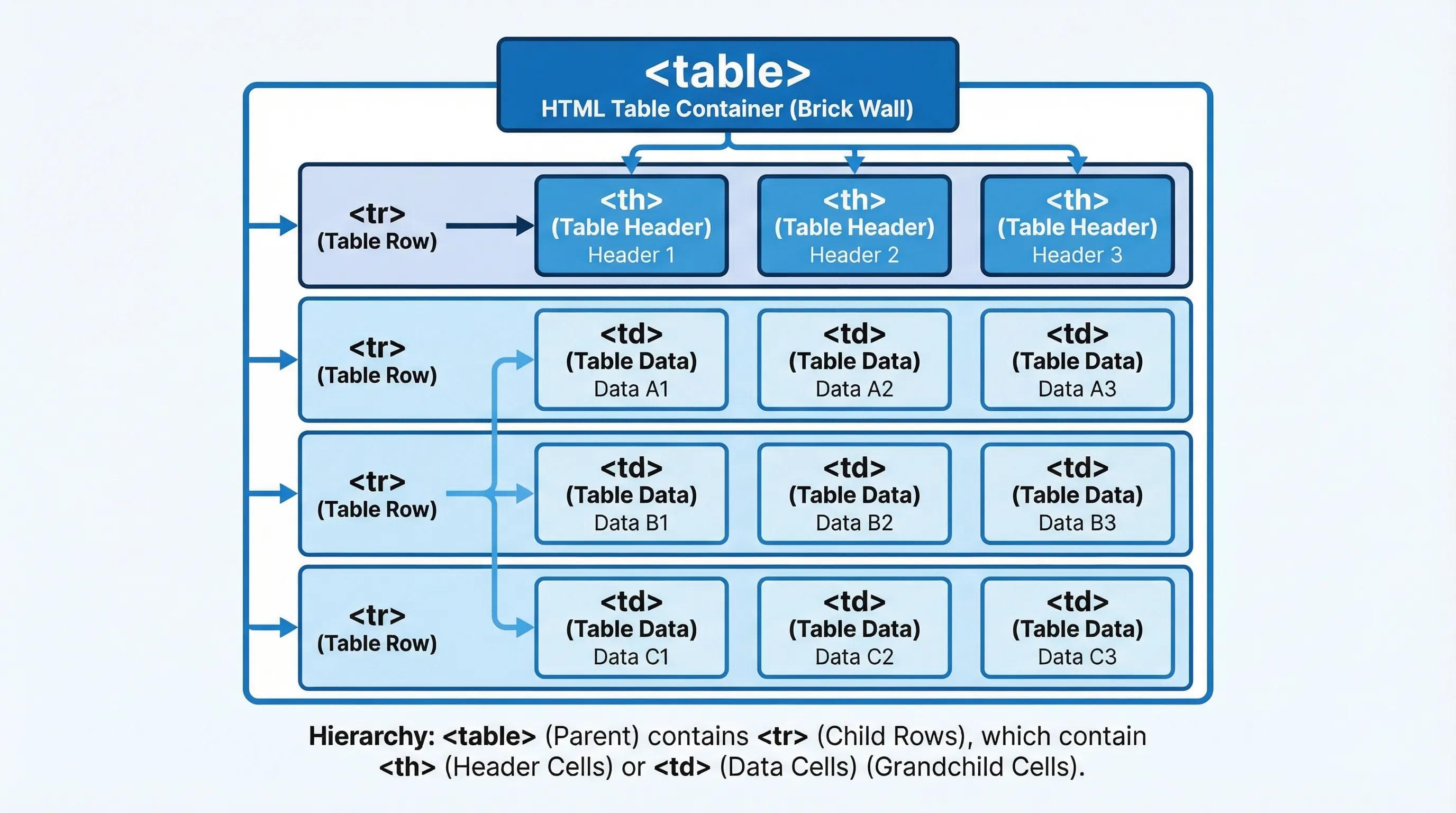
Code Structure:
html
<table>
  <tr>
    <td>Brick 1</td>
    <td>Brick 2</td>
  </tr>
  <tr>
    <td>Brick 3</td>
    <td>Brick 4</td>
  </tr>
</table>
Semantics: The Head and The Body
Just like an HTML document has a
<head> and <body>, a complex Table should also be divided.<thead>: Contains the header row (Titles).<tbody>: Contains the actual data rows.
Why do this? If you print a very long table on paper, the browser knows to repeat the
<thead> on every new page so the reader doesn't get lost.Code Structure:
html
<table>
  <thead>
    <tr>
      <th>Product</th> <th>Price</th>   </tr>
  </thead>
  <tbody>
    <tr>
      <td>Apple</td>   <td>$2</td>      </tr>
  </tbody>
</table>
Advanced Magic: Merging Cells (colspan & rowspan)
Sometimes, data doesn't fit into a perfect grid.
- Maybe the "Total" price needs to stretch across two columns.
- Maybe "Lunch Break" needs to stretch down across two hours.
We use Attributes for this:
1.
colspan (Column Span): Merges cells horizontally (Left to Right).html
<tr>
  <td>Total</td>
  <td colspan="2">$500</td> </tr>
2.
rowspan (Row Span): Merges cells vertically (Top to Bottom).html
<tr>
  <td rowspan="2">Lunch Break</td> <td>1:00 PM</td>
</tr>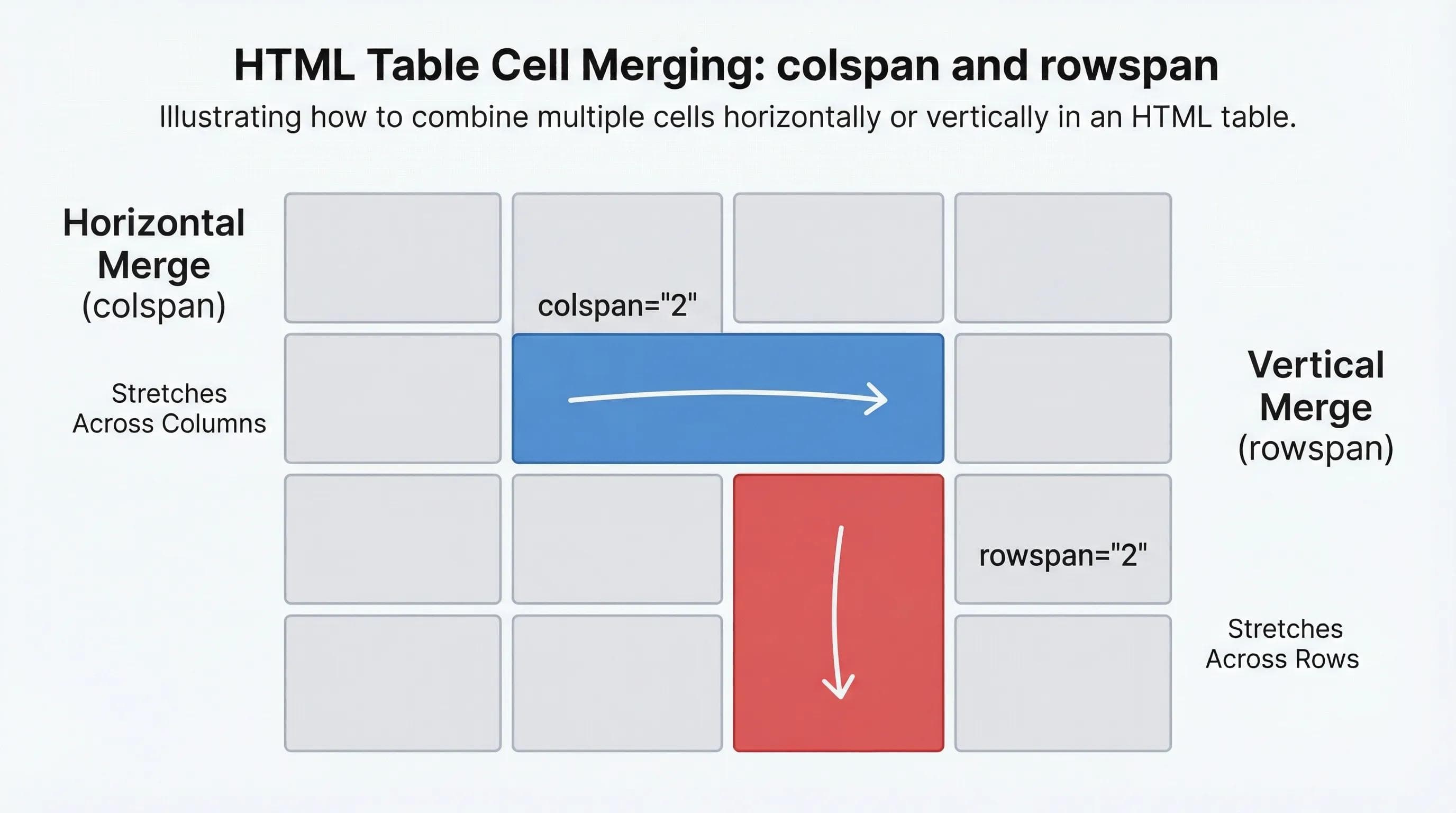
The AI Angle: AI is Bad at Math
AI tools like ChatGPT are great at writing code, but they are often terrible at "visualizing" a grid.
If you ask AI to generate a complex table with merged cells, it often miscounts. It might put 3 cells in a row that only has space for 2, breaking your table layout.
"AI builds the grid, but YOU must check the math."
Practical Task: The Comparison Table
Let’s build a table to compare the three technologies we have discussed in this series: HTML, CSS, and JavaScript.
Step 1: Open
index.html.Step 2: Add this code at the bottom of your body (before
</body>).html
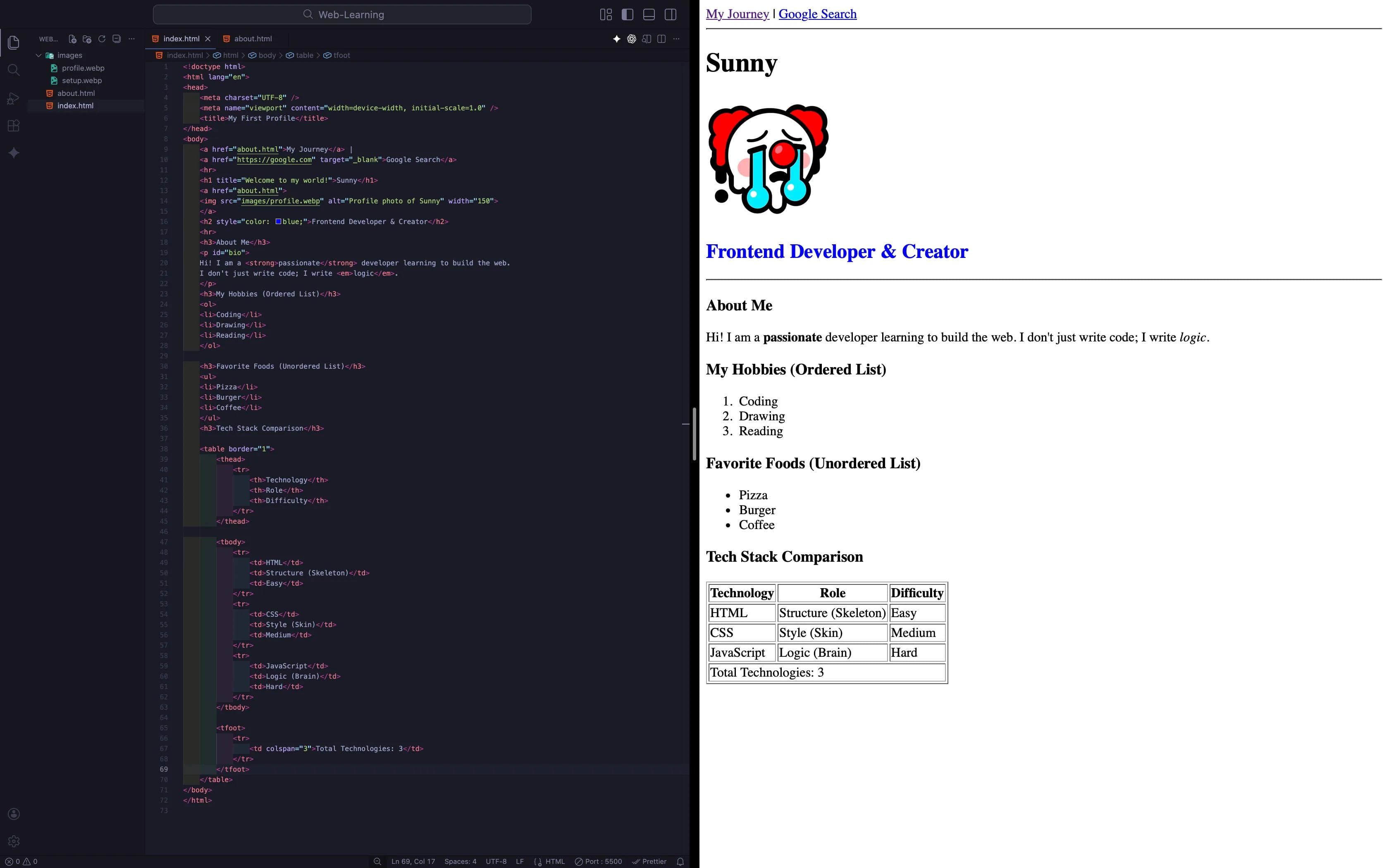
<h3>Tech Stack Comparison</h3>

    <table border="1">
        <thead>
            <tr>
                <th>Technology</th>
                <th>Role</th>
                <th>Difficulty</th>
            </tr>
        </thead>

        <tbody>
            <tr>
                <td>HTML</td>
                <td>Structure (Skeleton)</td>
                <td>Easy</td>
            </tr>
            <tr>
                <td>CSS</td>
                <td>Style (Skin)</td>
                <td>Medium</td>
            </tr>
            <tr>
                <td>JavaScript</td>
                <td>Logic (Brain)</td>
                <td>Hard</td>
            </tr>
        </tbody>

        <tfoot>
            <tr>
                <td colspan="3">Total Technologies: 3</td>
            </tr>
        </tfoot>
</table>Note: We added border="1" just to see the lines. In the real world, we use CSS for borders.Step 3: Open Live Server. You will see a neat grid organizing the information.
Time to Experiment!
Don't just copy-paste this! Go ahead and play with the code.
Don't just leave your table as boring text. Remember, a
<td> (Table Data) is just a container—like a box. You can put anything inside it.Let's combine everything we have learned in this series so far:
1. The "Visual" Cell (Recall Blog 7): Text is boring. Try adding an image inside a cell!
- Task: Download a small logo for HTML (or use your profile pic).
- Code: Inside the first
<td>HTML</td>, replace the text "HTML" with:
html
<td>
    <img src="images/html-logo.png" width="50" alt="HTML Logo">
</td>- Result: You now have a visual icon in your grid!
2. The "Clickable" Data (Recall Blog 6): Tables often have "Action" buttons (like 'Buy Now' or 'View Details').
- Task: Turn the "JavaScript" text into a link that goes to
javascript.com.
html
<td> <a href="https://javascript.com" target="_blank">JavaScript</a> </td>3. The "Highlight" Row (Recall Blog 5): Let's make the "Total" row look special using inline styles.
- Task: Change the background color of the footer.
html
<tr style="background-color: yellow;">
    <td colspan="3">Total Technologies: 3</td>
</tr>
4. The "Broken" Grid (Layout Logic): Now, let's break it on purpose to understand how fragile tables are.
- Task: Delete one single
<td>from the middle row. - Observation: Notice how the entire row shifts to the left? The "Difficulty" value might slide under the "Role" column. This is why counting your cells is crucial!
Go ahead, mess it up. That's how you learn!
Conclusion
We have now mastered the art of displaying information. We can write Text, show Images, list Items, and organize Data in Tables.
But notice something... Every time we write a new element—a Heading, a Paragraph, a List, or a Table—it always starts on a New Line. But when we write a
<b> tag or a link <a>, it stays on the Same Line.Why is that? Why do some elements hog the whole width of the screen while others share space?
This is the concept of Block vs. Inline Elements. It is the single most important concept for understanding "Layout."
In the next blog post, we will decode the difference between
<div> and <span>, and finally understand how to control the flow of our page.See you in the next post!
You can Read next part from here - READ NOW!
HTML Series: Your First Step in Modern Web Development (2026)
Step 9 of 22