The "Invisible Salesman"
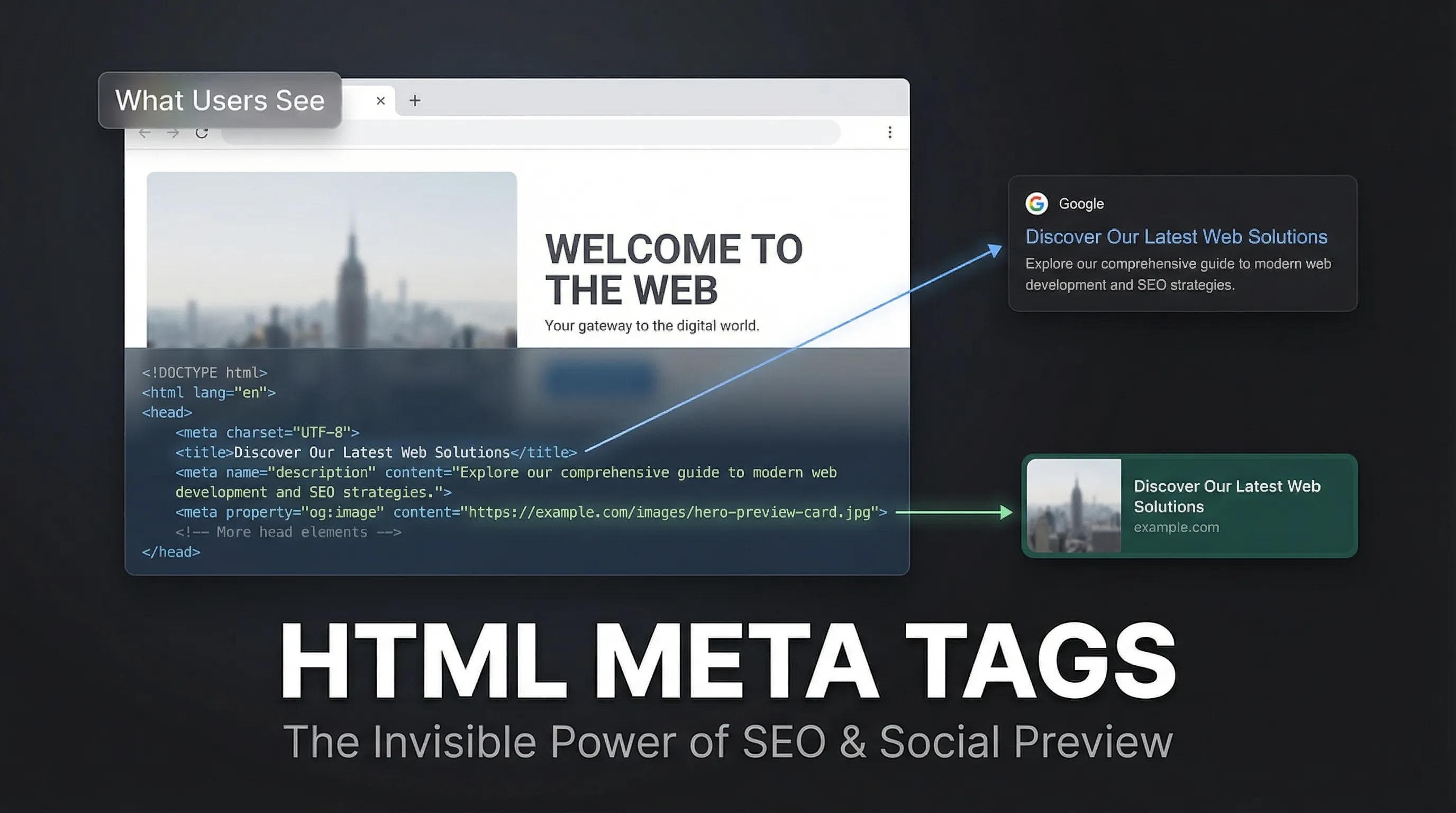
You have built a great shop (your website). It has a nice structure (Semantic HTML) and good content. But there is a problem: The Signboard is blank.

- When you search for your site on Google, it might show weird text.
- When you share your link on WhatsApp, it just shows a boring blue link, while other sites show a cool picture and title.
This happens because you ignored the Brain of your website: The
<head> tag. Today, we will fix this using Meta Tags.1. Location: Inside the <head>
We spend 99% of our time in the
<body>. But today, we are going to the <head>.Everything inside
<head> is Invisible to the user on the page, but Visible to:- Google Bots (SEO).
- Social Media Bots (WhatsApp/Twitter previews).
- The Browser (Settings).
2. The Essentials (The Must-Haves)
If you used the
! + Tab shortcut in VS Code, you already have these. But you need to know why they are there.A. The Universal Translator: charset="UTF-8"
Computers deal with numbers, not letters.
UTF-8 is a character set that includes almost every character in human history.- Without it: Your emojis or Hindi text might look like ``.
- With it: Everything works.
B. The Mobile Lens: viewport
This is the single most important line for mobile responsiveness.
width=device-width tells the browser: "Please scale my website to fit the width of the user's phone."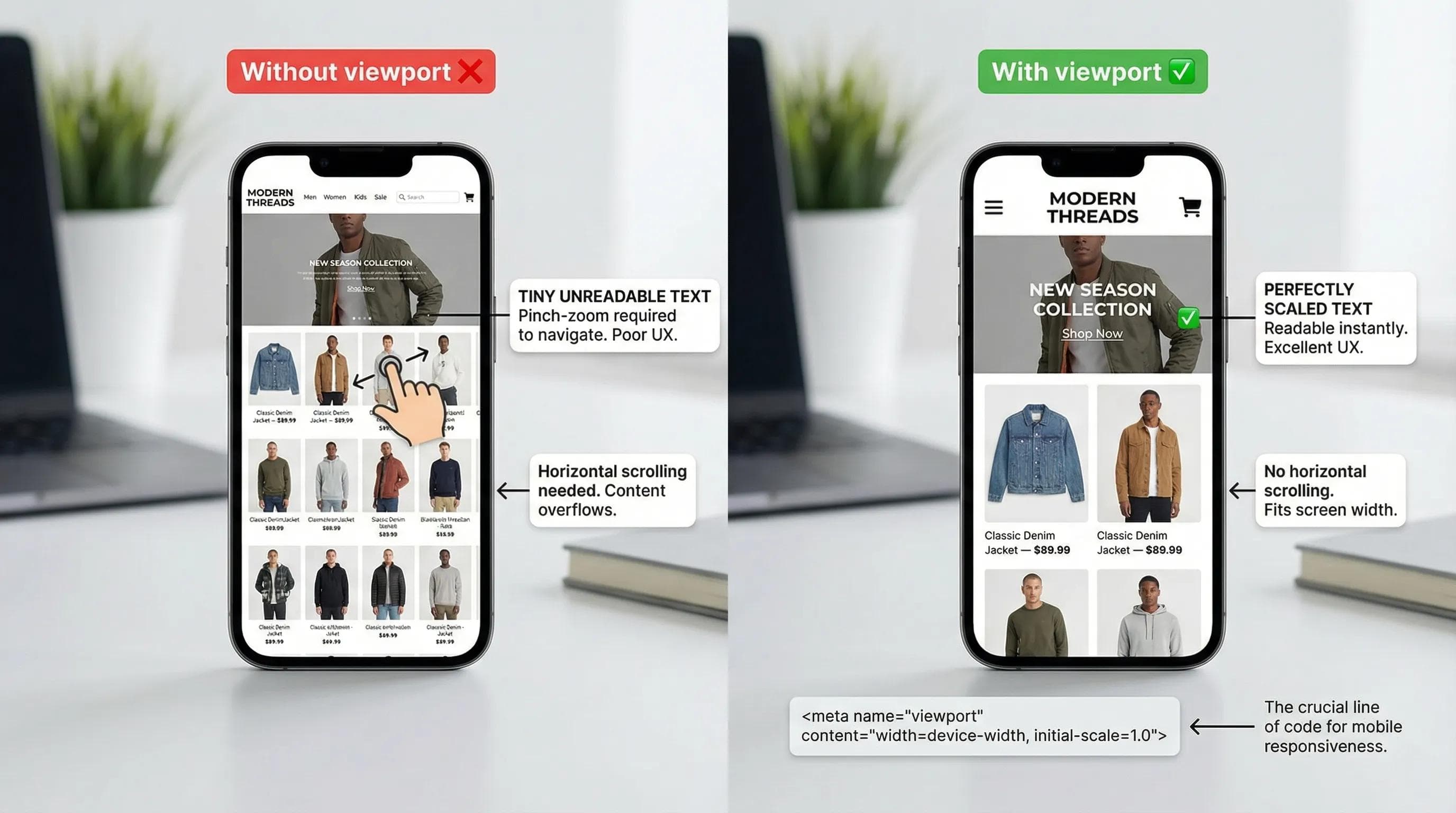
3. The SEO Tags
When you search on Google, you see a Blue Link and a Grey Description. You control these.
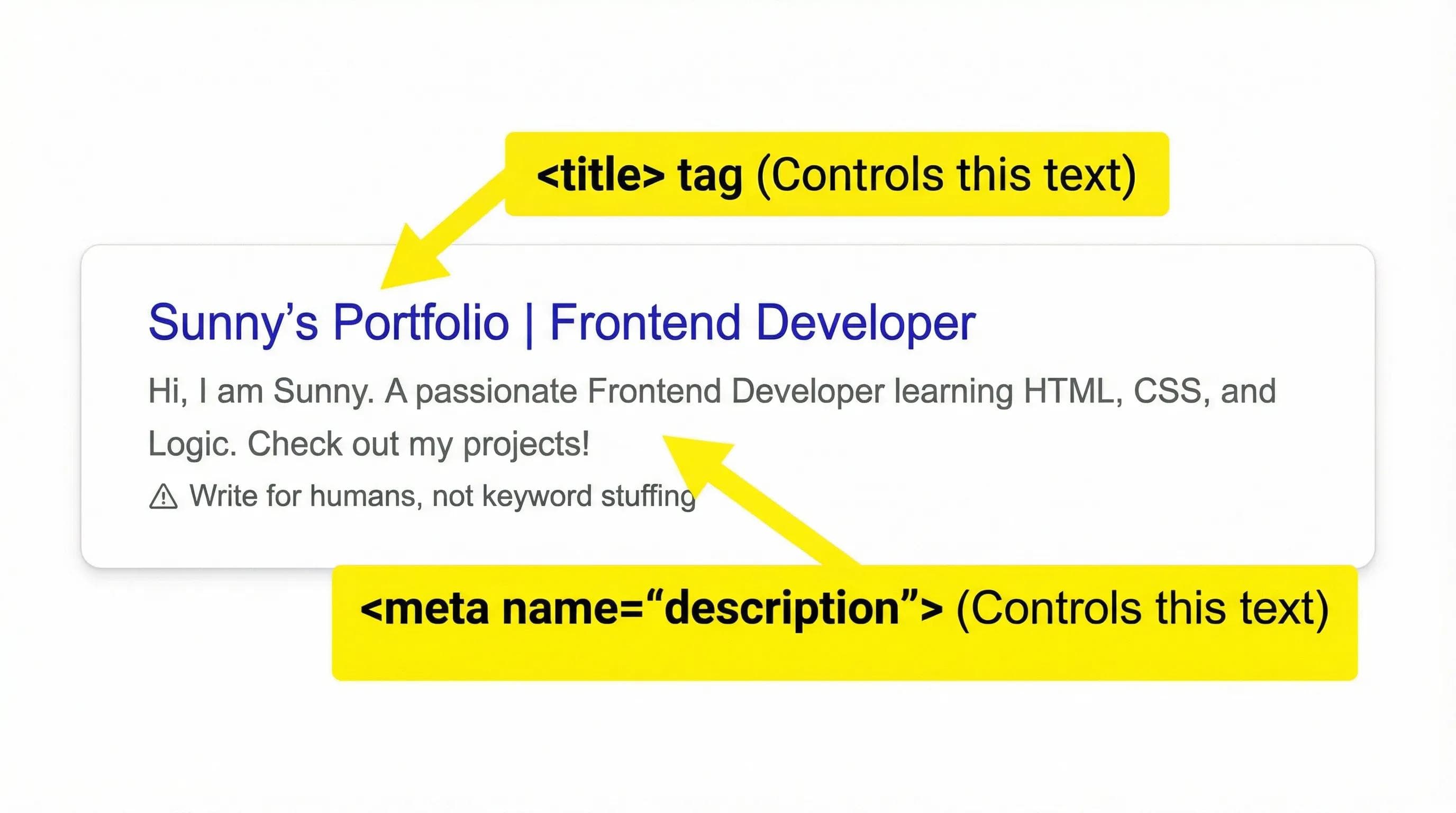
The Title Tag (<title>)
This is the Blue Link on Google and the text on your Browser Tab.
- Bad:
<title>Index</title> - Good:
<title>Sunny's Portfolio | Frontend Developer</title>
The Description Tag
This is the "Elevator Pitch." You have 160 characters to convince the user to click.
html
<meta name="description" content="Hi, I am Sunny. A passionate Frontend Developer learning HTML, CSS, and Logic. Check out my projects!">Do not "stuff" keywords like "Best developer, cheap developer, good html, free site". Google hates that and will hide your site. Write for humans, not robots.
4. The Social Tags (Open Graph)
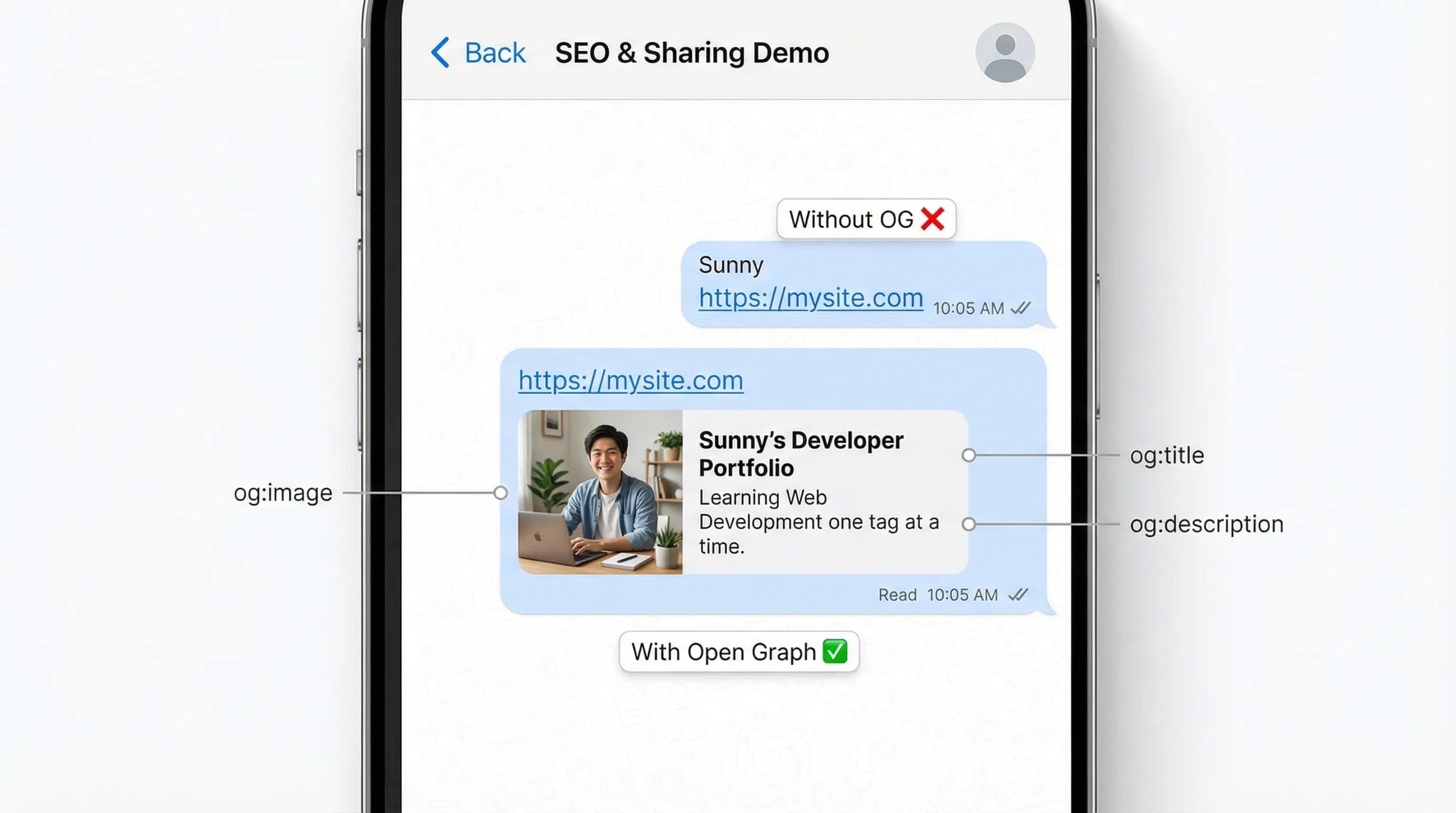
Have you ever pasted a YouTube link on WhatsApp, and it instantly expanded into a card with a video thumbnail? That is called Open Graph (OG) protocol.
If you want your site to look cool on Twitter/WhatsApp/LinkedIn, you need these 3 Holy Tags:
og:title: The Headline of the card.
og:description: The short summary.og:image: The thumbnail image.
html
<meta property="og:title" content="Sunny's Developer Portfolio">
<meta property="og:description" content="Learning Web Development one tag at a time.">
<meta property="og:image" content="https://mysite.com/images/profile.webp">
The AI Angle: Clickbait vs. Relevance
AI tools (ChatGPT) can write meta descriptions in 1 second.
- AI: "Sunny's portfolio website containing HTML and CSS projects." (Boring).
- You: "Building the web, one bug at a time. See my journey from Zero to Hero." (Engaging).
Tip: AI is the drafter; You are the editor.
6. Practical Task: The SEO Upgrade 🛠️
Let's upgrade the brain of our
index.html.Step 1: Open
index.html. Step 2: Go to the
<head> section. Step 3: Update it with the code below.
🛑 STOP! DO NOT JUST COPY PASTE! You need to customize the content insidecontent="...". Also, forog:image, put the path to your profile picture.
html
<head>
    <meta charset="UTF-8" />
    <meta name="viewport" content="width=device-width, initial-scale=1.0" />

    <title>Sunny | Frontend Developer</title>

    <meta name="description" content="Portfolio of Sunny, a Frontend Developer mastering HTML and Logic. View my projects and journey.">

    <meta property="og:title" content="Meet Sunny - The Code Creator">
    <meta property="og:description" content="Check out my latest web projects and skills.">

    <meta property="og:image" content="images/profile.webp">
</head>
Step 4: Refresh your page.
- Hover over the Browser Tab. You should see the new Title!
- Right-click anywhere on the page and select "View Page Source" to see your invisible Meta tags working silently.
Summary Table: The Meta Cheat Sheet
| Tag | Purpose | Visibility |
|---|---|---|
| charset | Handles Emojis/Languages | Invisible |
| viewport | Fixes Mobile Layout | Invisible (but affects layout) |
| title | Browser Tab & Google Link | Visible |
| description | Google Search Text | Visible (on Google) |
| og:image | WhatsApp/Twitter Thumbnail | Visible (on Social) |
Conclusion
Your website now has a Brain. It introduces itself to Google, and it dresses up nicely for Social Media.
But we have one small visual issue. Look at your Footer from the previous blog. You probably wrote:
Copyright (c) 2026. It looks okay, but professional sites use the actual symbol ©.Also, if you try to write a math formula like
5 < 10 in HTML, the browser might crash because it thinks < is the start of a Tag!How do we write special symbols without confusing the browser?
In the next blog, "HTML Entities & Symbols," we will learn how to speak the secret language of the browser to print symbols like
©, ₹, →, and emojis safely.See you in the next post!
You can Read next part from here - READ NOW!
HTML Series: Your First Step in Modern Web Development (2026)
Step 17 of 22