The Silent Web
Up until now, our website has been very quiet. It has text, images, and forms, but it doesn't move or speak.

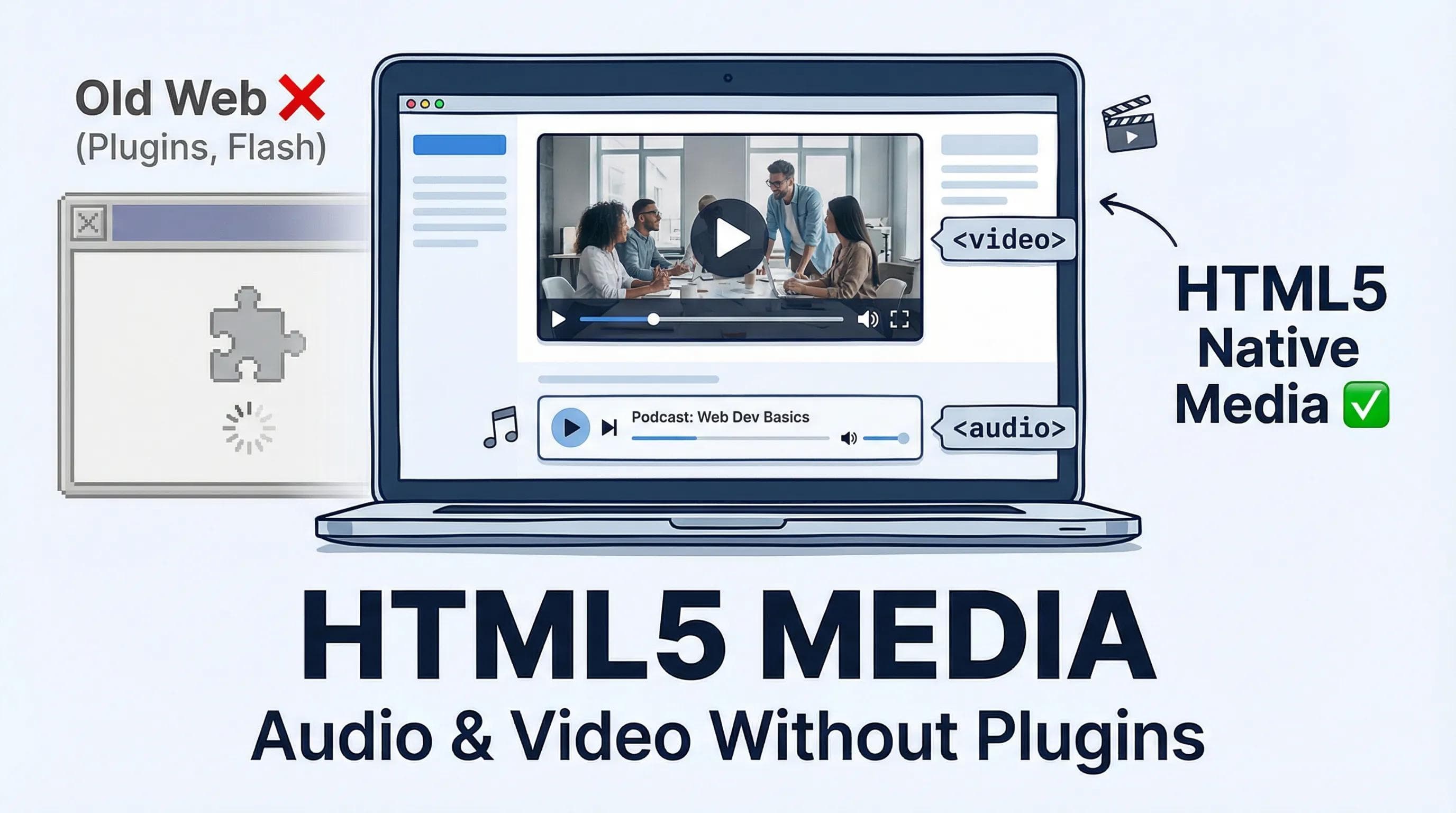
In the old days (Internet Explorer era), playing a video on a website was a nightmare. You needed "Flash Player" and heavy plugins. But today, HTML5 has made it incredibly simple. You don't need plugins. You just need two tags.
In this blog, we will turn our static pages into a Multimedia Experience.
1. The <audio> Tag (The Podcast Player)
Want to add music, a podcast, or a voice note? We use the
<audio> tag.But here is the catch: If you just write
<audio src="song.mp3"></audio>, nothing will happen. Why? Because the audio loads in the background, but the user has no buttons to play it!The Magic Attribute: controls
You must add the
controls attribute. This tells the browser to draw its native Play, Pause, and Volume buttons.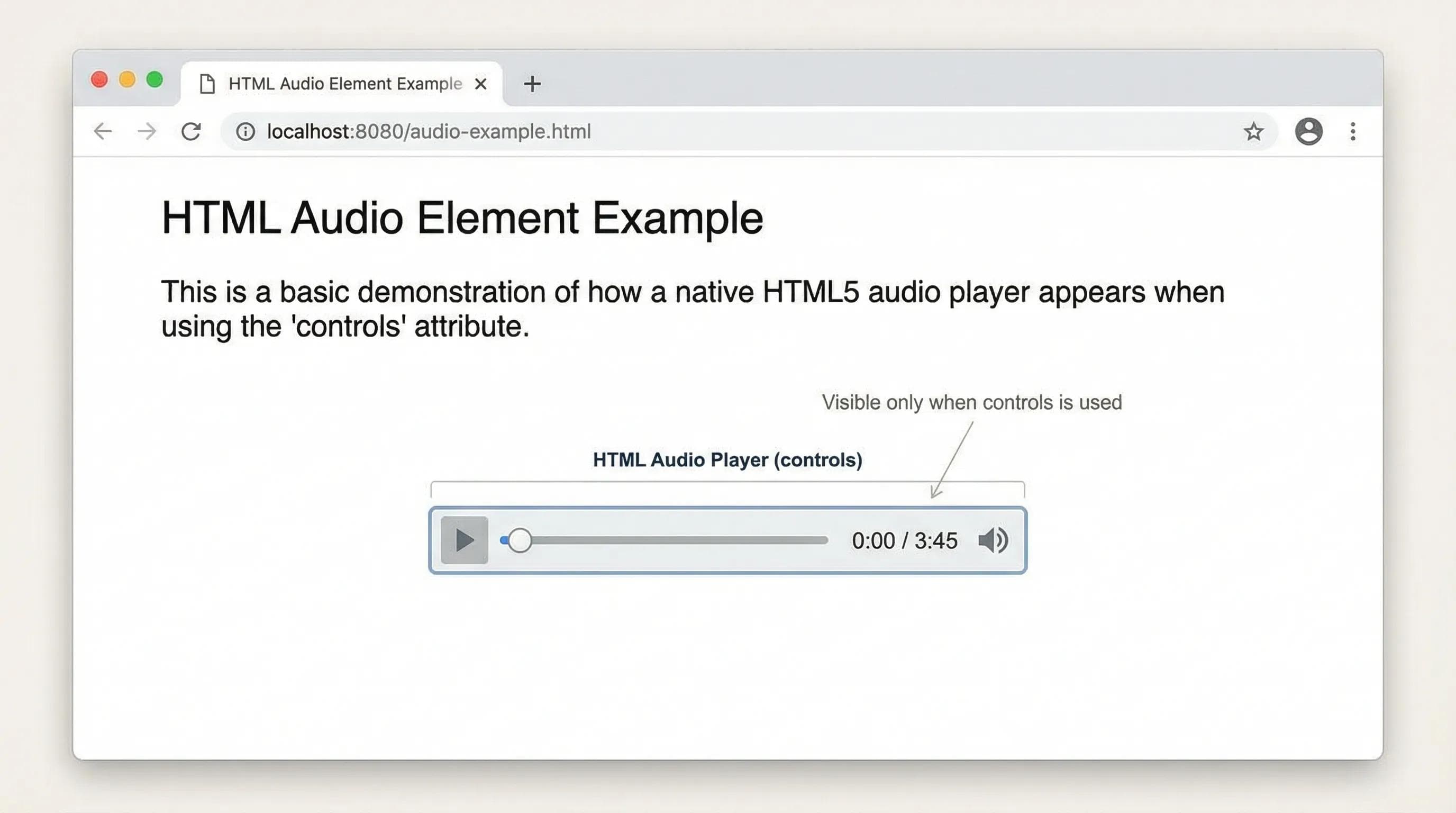
CRITICAL WARNING:
If you forget the controls attribute, the audio player will be invisible. The file will download, but the user won't see anything!
html
<audio controls>
    <source src="song.mp3" type="audio/mpeg">
    Your browser does not support the audio element.
</audio>
Why .mp3?
Stick to MP3 files for audio. They work on every device (iPhone, Android, Windows, Mac). Other formats like .ogg or .wav might fail on some phones.
2. The <video> Tag (The Mini Cinema)
Video works almost exactly like audio, but with a visual component. We use the
<video> tag.Again, don't forget the
controls attribute, or your users won't be able to play the video!The poster Attribute (The Thumbnail)
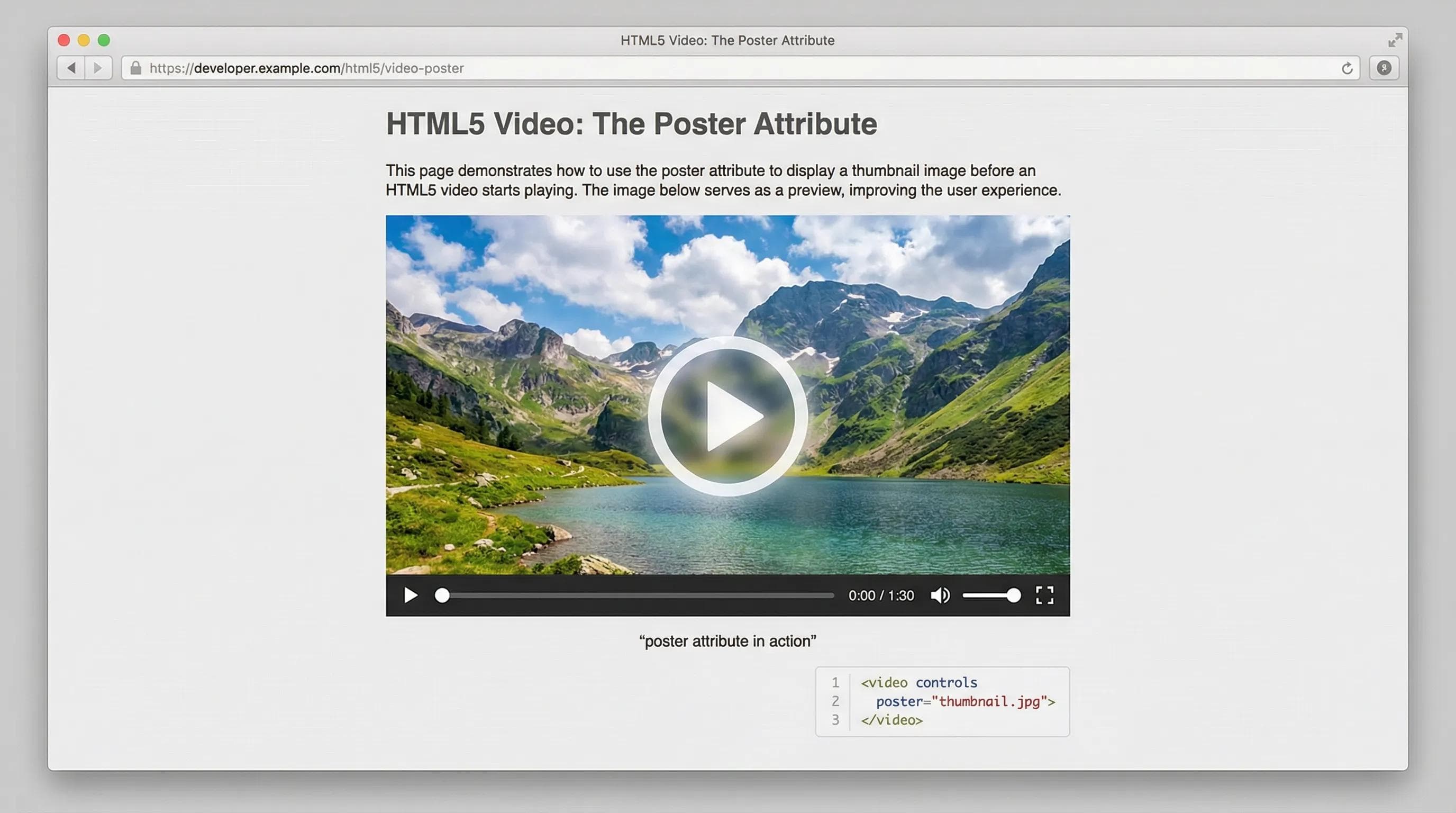
Have you noticed how YouTube videos show a picture before you click play? That is called a Poster. If you don't add this, the browser will just show the first frame of the video (which is often a black screen).
html
<video width="500" height="300" controls poster="thumbnail.jpg">
  <source src="movie.mp4" type="video/mp4">
  Your browser does not support the video tag.
</video>
Modern Formats (.webm vs .mp4)
While .mp4 is the King of compatibility (works everywhere), there is a newer, better hero: .webm. - WebM videos are lighter (smaller file size) and load faster. - MP4 videos are heavier but safer.
For this series, we will use MP4 to be safe, but in the future, advanced developers use both!
3. The Autoplay Trap (Read Carefully!)
Beginners love the idea of
autoplay. "As soon as the user opens my site, the music should start!"Don't do it.
- UX Rule: Users hate unexpected sound. It’s annoying (especially if they are in a library or office).
- Browser Rule: Modern browsers (Chrome, Safari, Edge) BLOCK autoplay with sound automatically.
The Loophole: Muted Autoplay
If you want a video to play automatically (like a cool background video effect), you MUST mute it.
html
<video autoplay muted loop>
  <source src="background.mp4" type="video/mp4">
</video>
The AI Angle: Optimization
AI tools can generate code to embed a video, but they don't understand File Size. AI might tell you to embed a 4K Videothat is 500MB in size directly into HTML.
The Problem: If you put a 500MB video on your site, your user's mobile data will finish in 10 seconds, and your site will take forever to load. That’s why, always compress videos (use tools like Handbrake or online compressors) to make them smaller before putting them in your code.
Practical Task: The Media Gallery
Let's build a page to showcase our media.
Step 1: Create a new folder named
media inside your project folder.- Note: Since you might not have sample files handy, we will use online links for this practice so the code works immediately.
Step 2: Create a file named
media.html, and add boilerplate.Step 3: Write the code below in body.
🛑 STOP! DO NOT COPY PASTE! You need to get used to typing the tags and remembering attributes likecontrolsandposter. Type this out manually to build muscle memory.
html
<body>

    <h1>My Favorite Media</h1>
    <a href="index.html">Back to Home</a>
    <hr>

    <h2>1. Audio Player</h2>
    <p>Listen to this nature sound (Remember controls!):</p>

    <audio controls>
        <source src="https://www.soundhelix.com/examples/mp3/SoundHelix-Song-1.mp3" type="audio/mpeg">
    </audio>

    <hr>

    <h2>2. Video Player</h2>
    <p>Watch this sample video (Notice the Poster image):</p>

    <video width="500" controls poster="https://via.placeholder.com/500x280.png?text=Video+Thumbnail">
        <source src="https://www.w3schools.com/html/mov_bbb.mp4" type="video/mp4">
    </video>

    <hr>

    <h2>3. The Background Effect</h2>
    <p>This video plays automatically but is silent (autoplay muted loop):</p>

    <video width="300" autoplay muted loop>
        <source src="https://www.w3schools.com/html/mov_bbb.mp4" type="video/mp4">
    </video>

</body>
Step 4: Open Live Server.
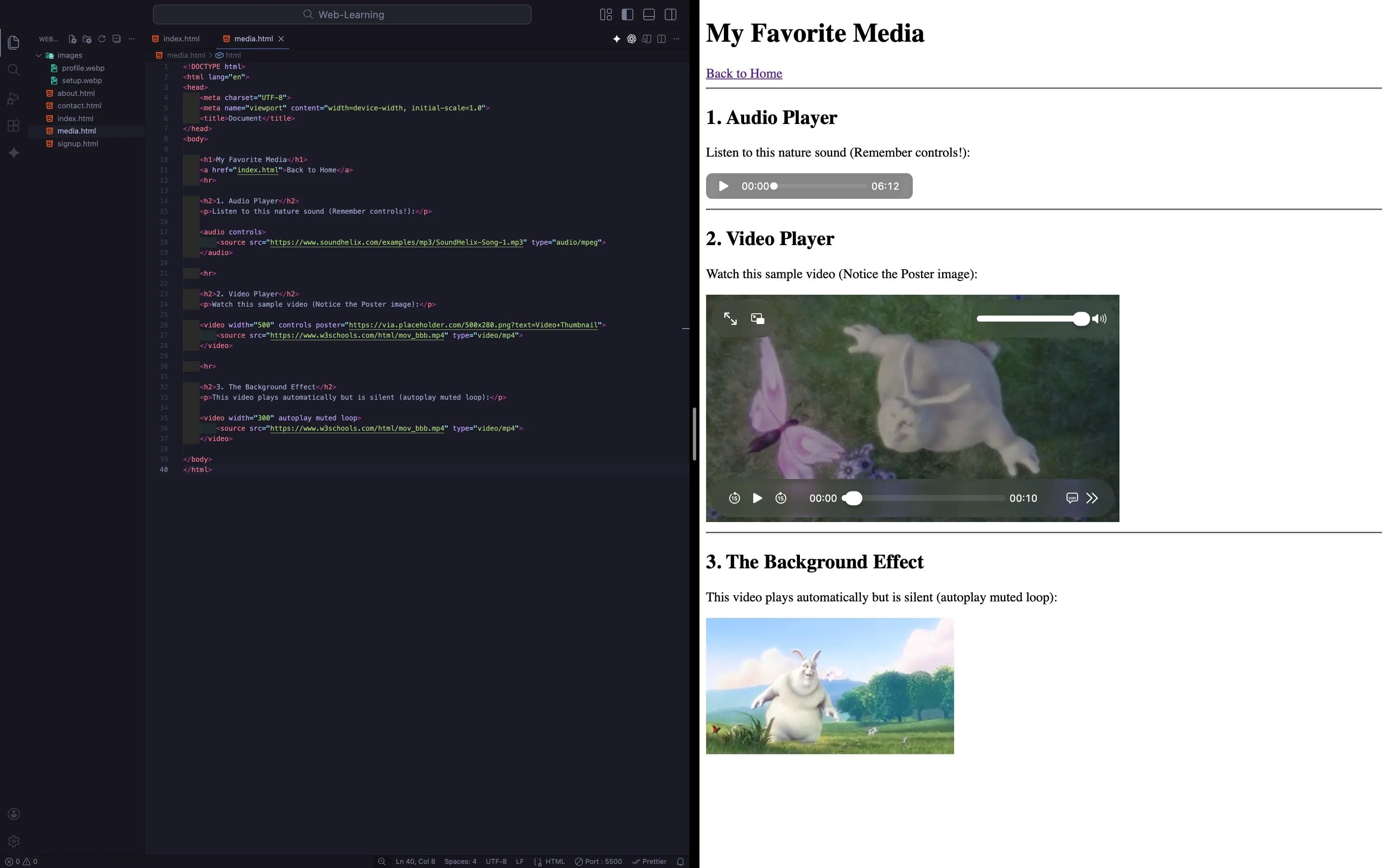
- Click play on the Audio.
- See the Thumbnail on the Video? Click Play.
- Notice the 3rd video is already playing (because it's muted).
Close the Loop!
Right now, inside your
media.html, you added a link to go back to Home. That is great. But... imagine a user lands on your Home Page (index.html). How do they find this new Media page? They can't! You haven't linked it yet.Your Task:
- Open your
index.html. - Find the top Navigation section (where you have the "My Journey" link).
- Add a new link there that points to
media.html.
I am not going to show you the code for this. You learned about Links (
<a>) in Blog 6. It is time to test your memory.Go ahead, experiment! Try to mix everything you have learned so far.
- Maybe put the links in a List (
<ul>)? - Maybe add a small icon or emoji inside the link?
If you get stuck, don't rush to ask AI. Look at your previous code. Trust your brain. :)
Summary Table: Media Attributes
| Attribute | Purpose |
|---|---|
| controls | Mandatory. Shows Play/Pause/Volume buttons. |
| poster | Shows an image before the video loads. |
| autoplay | Starts playing automatically (Avoid this!). |
| muted | Plays without sound (Required for autoplay to work). |
| loop | Replays the media instantly after it ends. |
Conclusion
You have successfully added sound and motion to your website. It feels alive now!
But there is a big problem. Video files are Heavy. If you host a 10-minute HD video on your website, your server will crash, and your hosting bill will be expensive. Big companies don't host their own videos. They upload to YouTube and just "show" it on their site.
Also, how do we show a Google Map on our contact page without building a map from scratch?
In the next blog, "Embedding Content: Iframes," we will learn the secret weapon of the web: The Iframe. We will learn how to open a "window" to other websites like YouTube and Google Maps directly inside your page.
See you in the next post!
You can Read next part from here - READ NOW!
HTML Series: Your First Step in Modern Web Development (2026)
Step 14 of 22