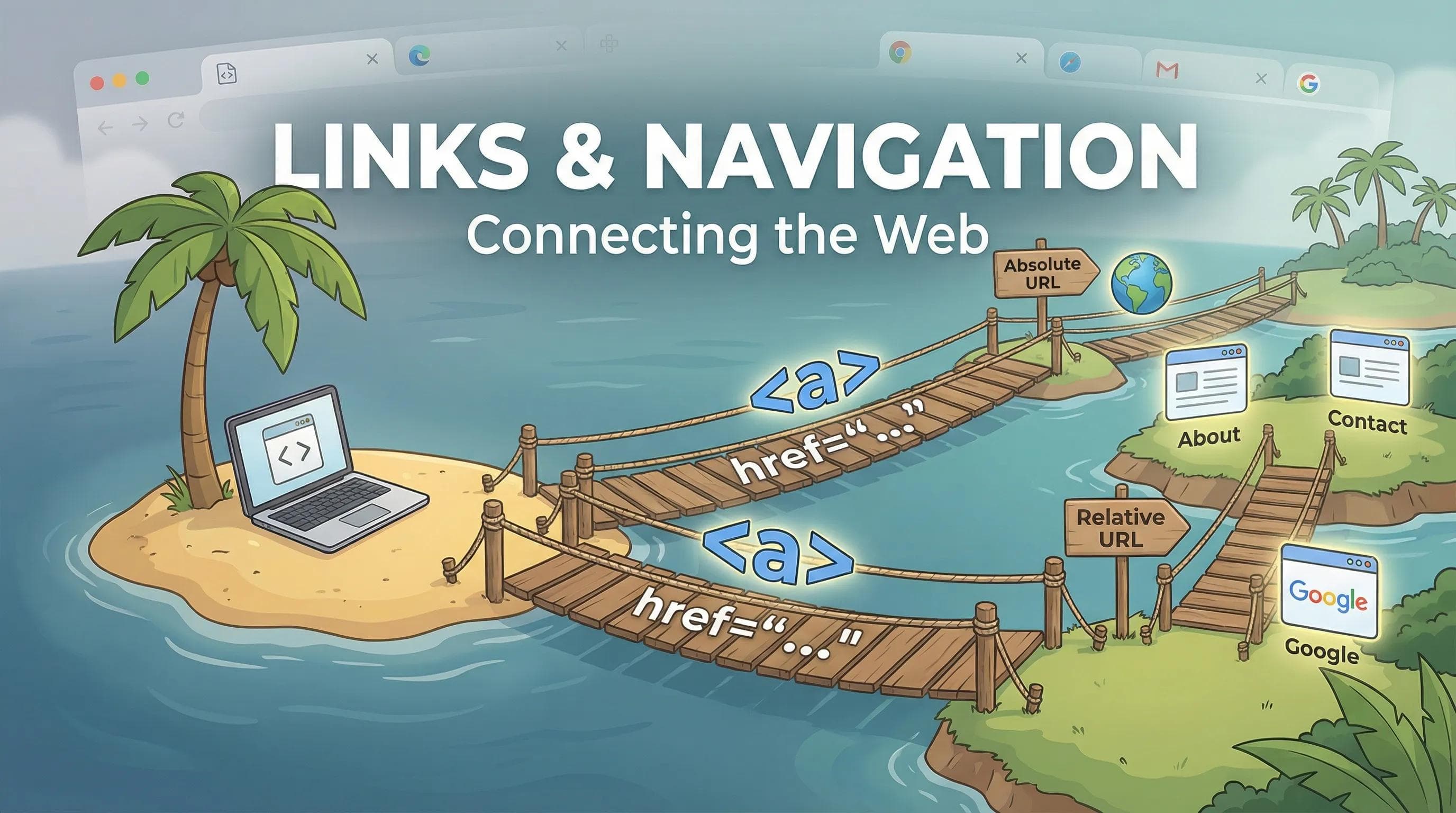
Escaping the Lonely Island
In the previous blog, we gave our tags "Superpowers" using Attributes. We added colors, tooltips, and IDs. But there is a massive problem.

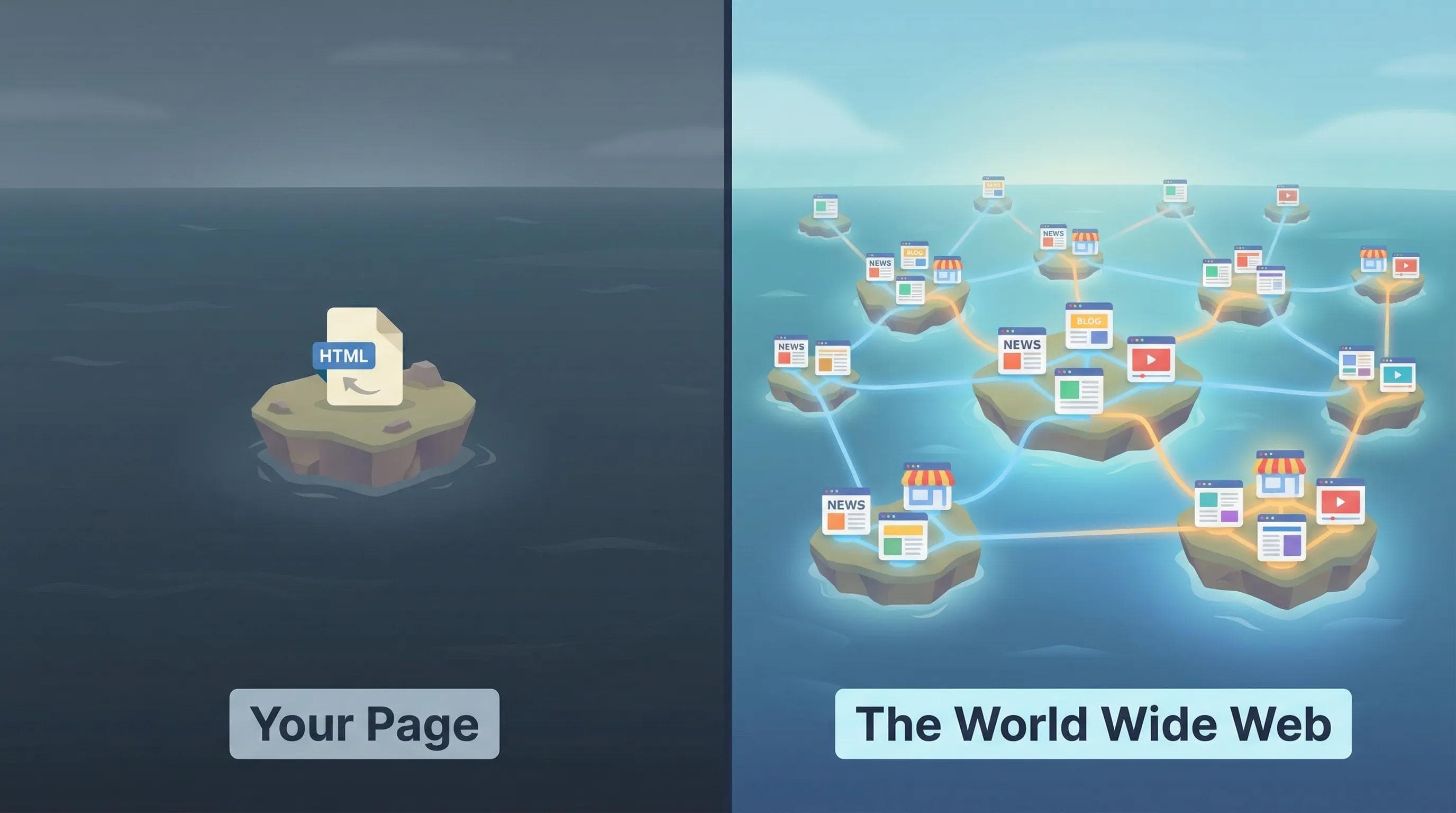
Right now, your website is a single page trapped in isolation, you cannot leave it, you cannot go to a "Contact" page and you cannot click a button to go to Google or a particular website.
The "H" in HTML stands for HyperText. This literally means "Text that links to other text." Today, we are going to break the walls of our single file and turn it into a connected Web.
The Anchor Tag (<a>) & The Teleport Attribute
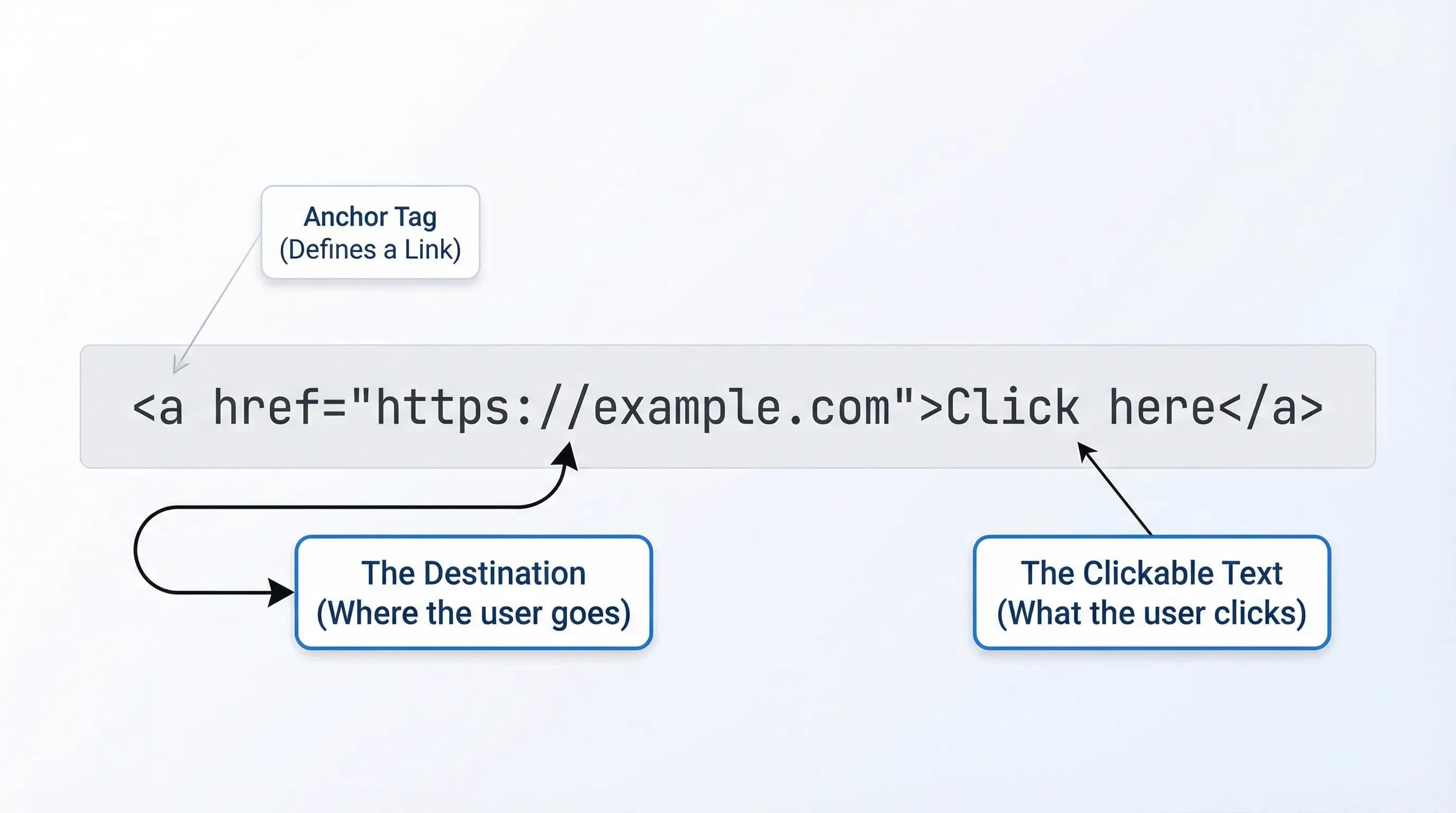
To create a link, we use the Anchor Tag:
<a>. But an anchor tag alone does nothing. It needs a destination. Remember Attributes from the last blog? We need a specific attribute called href (Hypertext Reference).Syntax:
html
<a href="https://google.com">Click here to go to Google</a><a>: The tag that defines the link.href="link": The destination (Where should the user go?).- "Click here to go to Google": The visible text the user clicks on.
Absolute vs. Relative Paths
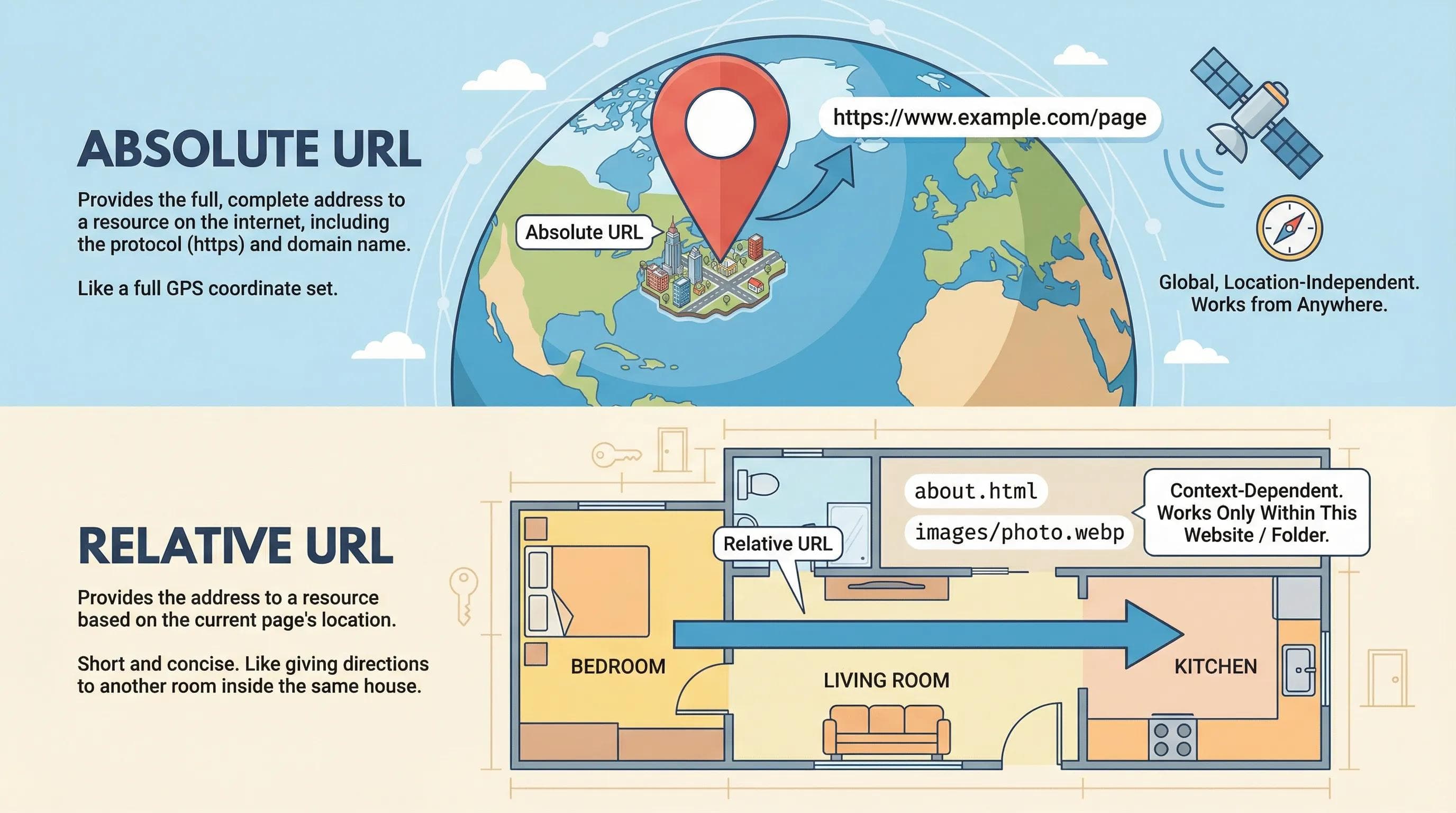
This is where 90% of beginners get confused. You will often see links like
href="https://google.com" and sometimes links like href="about.html".What is the difference? Let's use a GPS Analogy to make it easy to understand and remember :
1. Absolute URL (The Full Courier Address)
- Example:
https://www.youtube.com/videos.
This is the complete internet address, it includes the protocol
(https), the domain (google.com), and the path (/home) and it works independently of where you are currenty located, understand it like this -- Analogy: Imagine you are ordering a package from Amazon. You cannot just write "Room No. 4" on the box. You have to provide the Full Address: "Flat xx1, XYZ Apartments, XYZ Road, City, 000000" and with this full address (Absolute Path), the delivery guy can find you whether he is coming from Delhi, Bangalore, New York or from anywhere in the world.
- Use Case: When linking or providing direct links to external websites or post inside them like Facebook, Twitter, Wikipedia or other.
2. Relative URL (The Local Direction)
- Example:
about.htmlorimages/photo.webp
This is a link to a file inside your own project folder, it tells the browser where to go relative to where you are right now, understand it like this -
- The Analogy: Imagine you are already inside your house, and you want to ask your brother to go to the kitchen. You do not say: "Please go to Flat xx1, XYZ Apartments, XYZ Road, City, 000000, Kitchen." (That would be weird and unnecessary!). You simply say: "Go to the Kitchen", because you are both already inside the house (The Project Folder), you don't need the full address so you just give the short, direct path.
- Use Case: When linking to your own pages (Home linking to About, About linking to Contact and so on)
User Experience: The target Attribute
Have you ever clicked a link, and suddenly your website disappeared?
— That is annoying. Because by default, all the links open in the same tab. So, if you are sending a user to YouTube, you don't want them to leave your site completely and you want YouTube to open in a New Tab.
We use the
We use the
target attribute for this:html
<a href="https://youtube.com" target="_blank">Watch Video</a>What does _blank mean?
It tells the browser to open a fresh, blank tab for this link. This keeps your user on your website while they watch the video in the new tab.
The SEO Angle: Broken Bridges
Google is like a traveler that jumps from link to link. So, if you make a typo (typing mistake) in your
href (eg. href="gogle.com" instead of google.com), the link won't work and this is called a Broken Link and it gives 404 Error.Broken Links Kill SEO!
If Google finds broken links on your page, it assumes your website is old or poorly maintained, so it will stop ranking you high in search results.
Always test your links!
The AI Angle: AI is Blind to Your Folders
Here is why you cannot blindly trust ChatGPT/Gemini or other with links.
AI does not have access to your laptop's hard drive. It does not know that you named your file
my_photo.jpg or photo.jpeg or Image.png.If you ask AI to "Link to my about page," it might write
href="about-us.html", but your file might be named about.html."AI can write the code, but only YOU know the map of your folders."
Practical Task: The 2-Page Website
Let’s build your first navigation system.
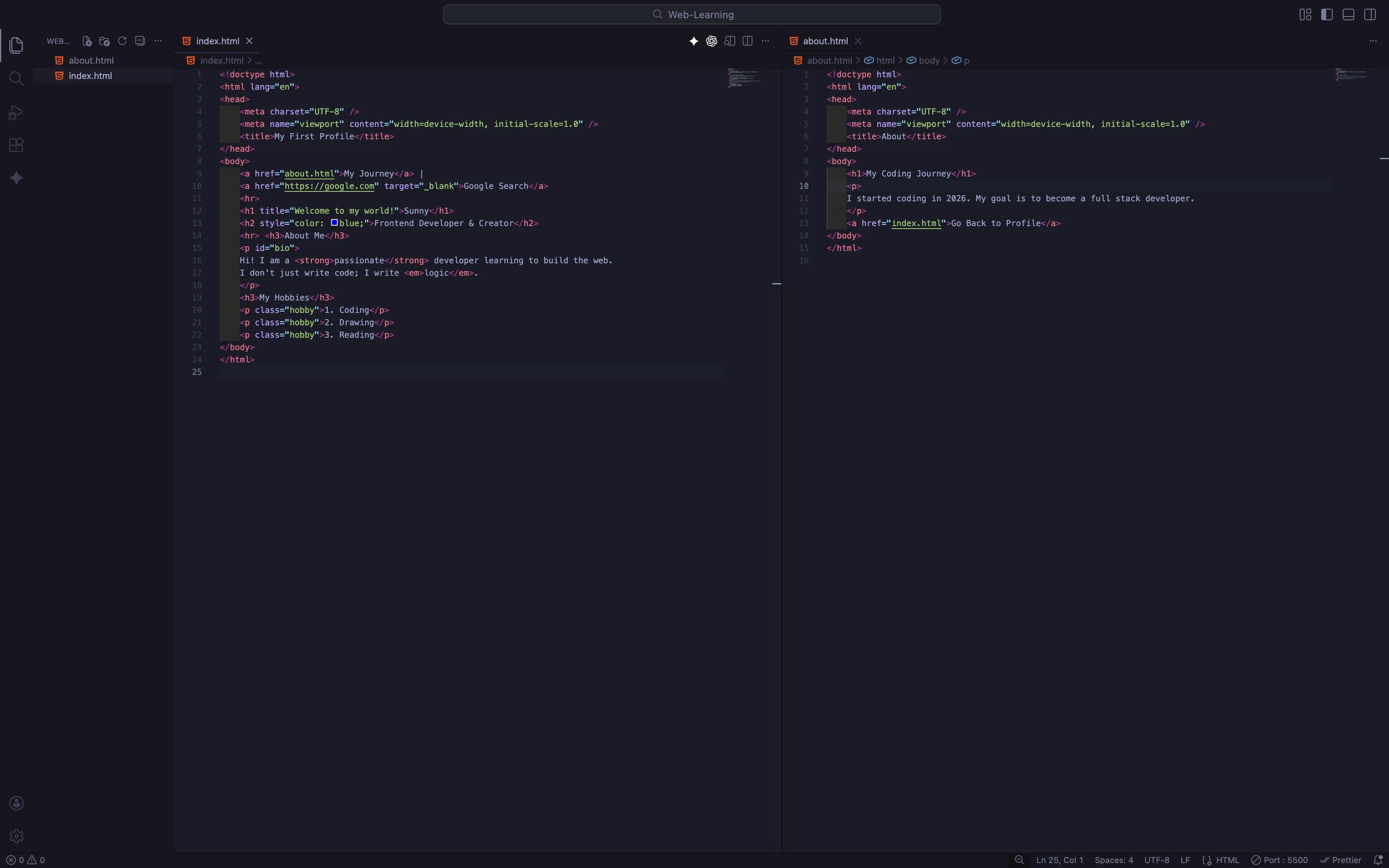
Step 1: Create a new file in your VS Code in folder where your index.html is loacted (Web-Learning) and name it
about.html.Step 2: Add the boilerplate (
! + Tab) to about.html and write content like this inside <body>:about.html
<h1>My Coding Journey</h1>
<p>I started coding in 2026. My goal is to become a full stack developer.</p>
<a href="index.html">Go Back to Profile</a>
Step 3: Now, go to your existing
index.html and there we will add a "Menu" at the top so users can navigate.Add the
<a> tags right after the opening <body> tag, before your name:html
<a href="about.html">My Journey</a> |
    <a href="https://google.com" target="_blank">Google Search</a>
    <hr>
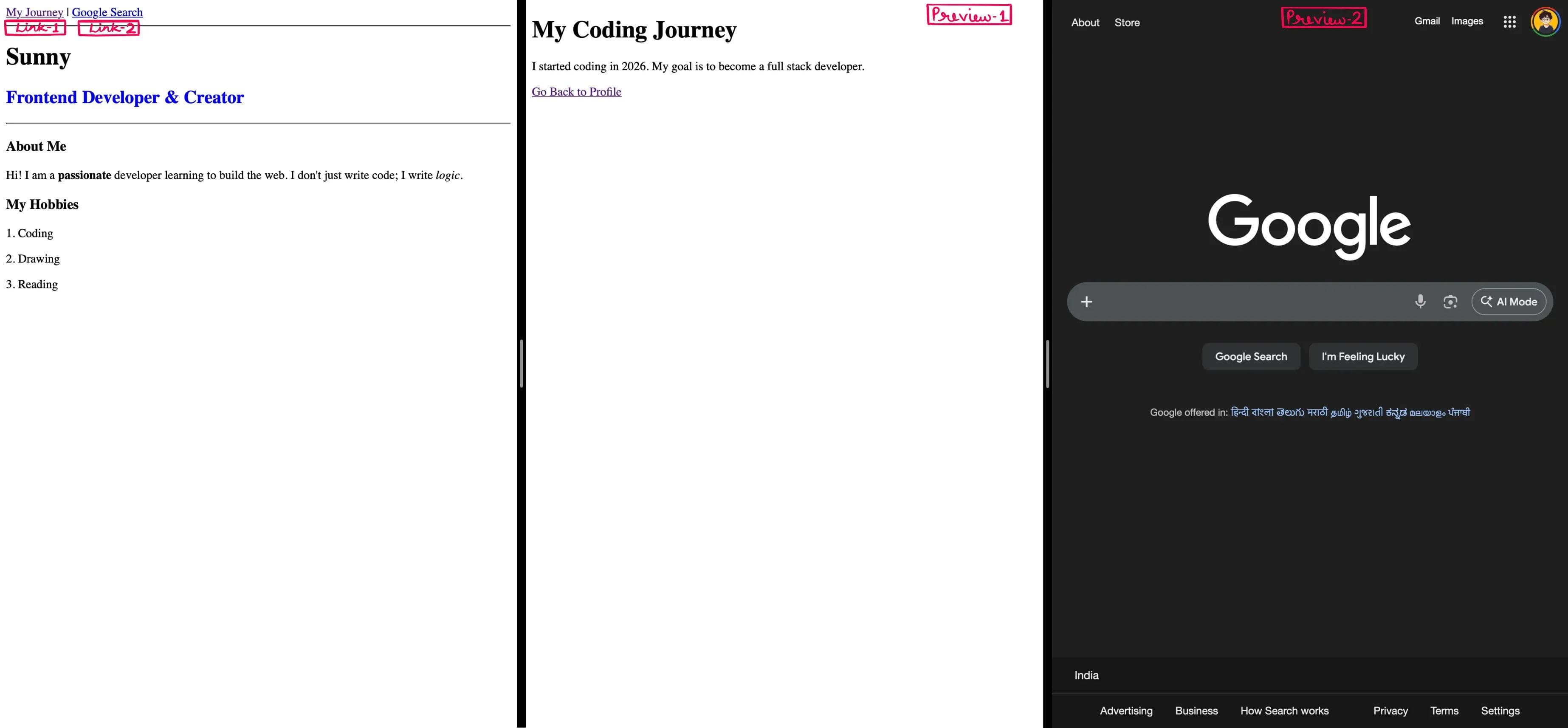
Step 4: Open Live Server.
- You will see your Profile with a new Link at the top: "My Journey" or whatever you added.
- Try them one by one. Click on it and it should take you to the new page
about.htmlor other if you added. - Click "Go Back to Profile" in
about.htmlto return (if it’s relative).
Congratulations! You just built a Multi-Page Website.
Time to Experiment!
Don't just copy-paste this! Go ahead and play with the code.
- Try adding a link to your Instagram profile using
target="_blank". - Try making the link text Bold using the
<strong>tag inside the<a>tag. - Break it on purpose: Remove a closing quote
"or misspellhrefto see how the browser reacts.
The best way to master these concepts is to break things and see what happens!
Conclusion
Your website is now a connected system. You can navigate between pages, and you can link to the outside world.
But look at your website. It’s text. Just... text. It looks like a newspaper from the 1800s. Where are the visuals? Where are the photos?
A picture is worth a thousand words, and a website without images is boring. So, in the next blog post, we will bring your website to life. We will master the Image Tag (
<img>), learn why Alt Text is crucial for blind users (and SEO), and learn the modern formats to keep your site fast.See you in the next post!
You can Read next part from here - READ NOW!
HTML Series: Your First Step in Modern Web Development (2026)
Step 6 of 22